| | | |
 Uploading .... Uploading ....
Cloud Device Manager Provisioning steps for ComXchange 17 With this version of ComXchange, provisioning methods will unify under a single, unique module called Cloud Device Manager. This is 14IP's module used for Cloud systems and will benefit ComXchange integrators with a larger base of third party supported devices that have been added for integration on other of our products. 1 Creating a Location and associating it to a premise ComXchange - Create a tenant account at https://devices.clearlyip.com/dashboard/cdm/tenant This is recommended as all templates, models and mapped extensions can be filtered out by tenant, making it easier to manager, and allowing some isolation between properties or pbx systems managed by the same reseller account.
- Then go back to ComXchange portal at https://trunking.clearlyip.com/dashboard --> ComxChange Properties --> View Properties

-
Create the ComXchange Location, this will allow you to create a module key to sync your ComXchange system to CDM, as well as create new templates, models, and mappings.
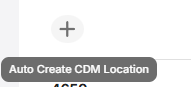
After clicking the + sign, it will prompt you to select a Tenant account, this is the reason why it is recommended to create a tenant before, so it won't get auto-assigned to the default tenant location 
- Select the tenant created for this ComXchange property, then click
Add CDM Location

- Now go back to https://devices.clearlyip.com/dashboard/cdm/location/ --> CDM --> Locations
Select the tenant related to your ComXchange property 
- This will filter the location, or locations under this specific Tenant
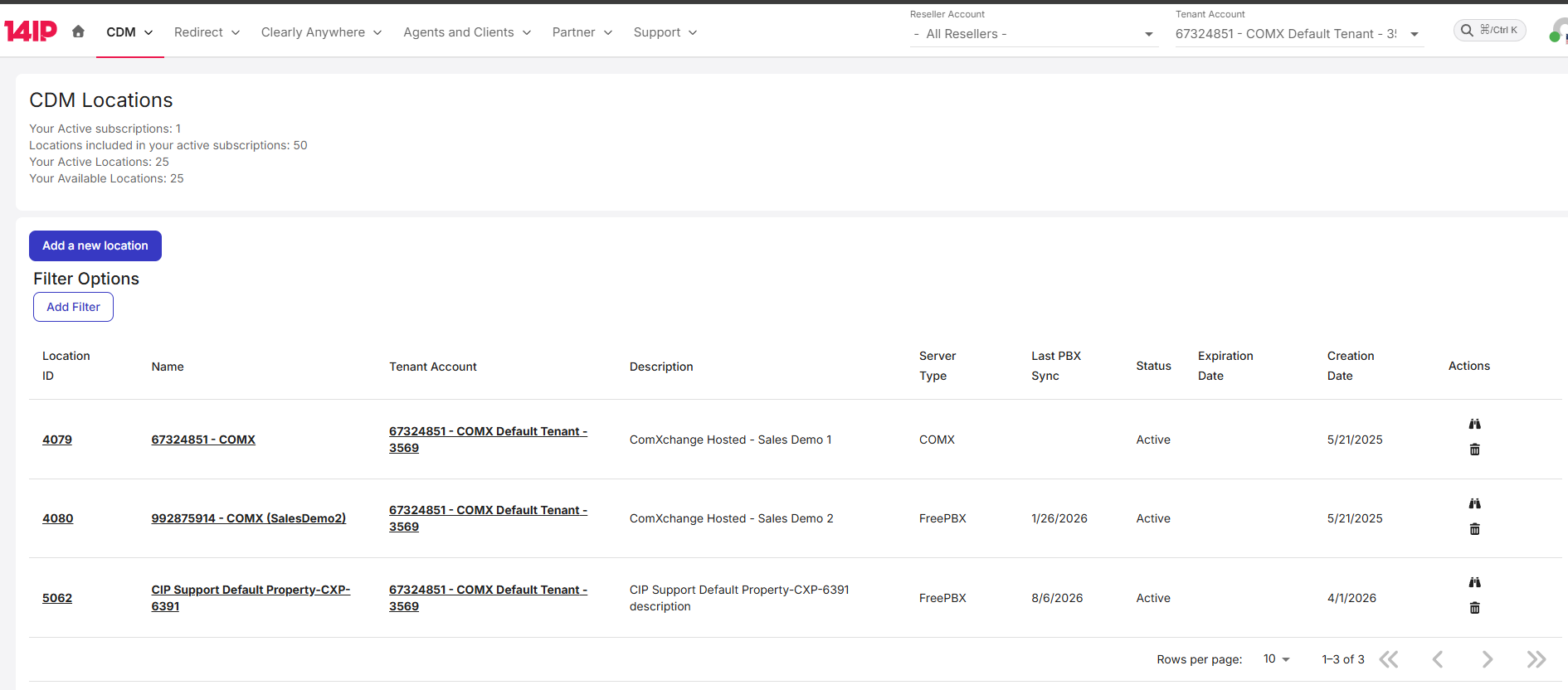
- Click on the Location ID that belongs to the CXP site ID for your ComXchange
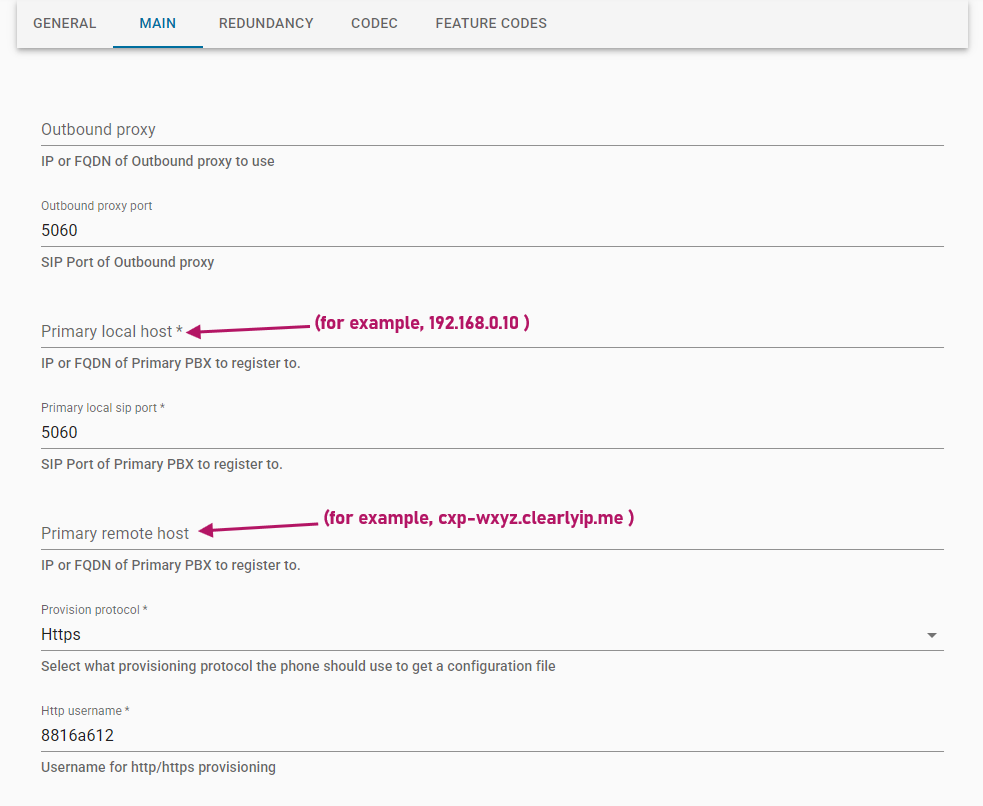
- Once there, first go to the MAIN tab and, in case the ComXchange controller is on-premise, set the "Primary local host" parameter with the local IP address of the ComXchange controller; otherwise (if the ComXchange controller is hosted), then set this parameter with its public IP address or domain name (FQDN).
NOTE: for on-premise scenarios, if some endpoints (phones) are to live internally (inside the property) while, at the same time, other endpoints externally (ourside the property), then consider configuring also the "Primary remote host" parameter: set it with the public IP address or domain name (FQDN) of the ComXchange controller.
- Then go back to the GENERAL tab:
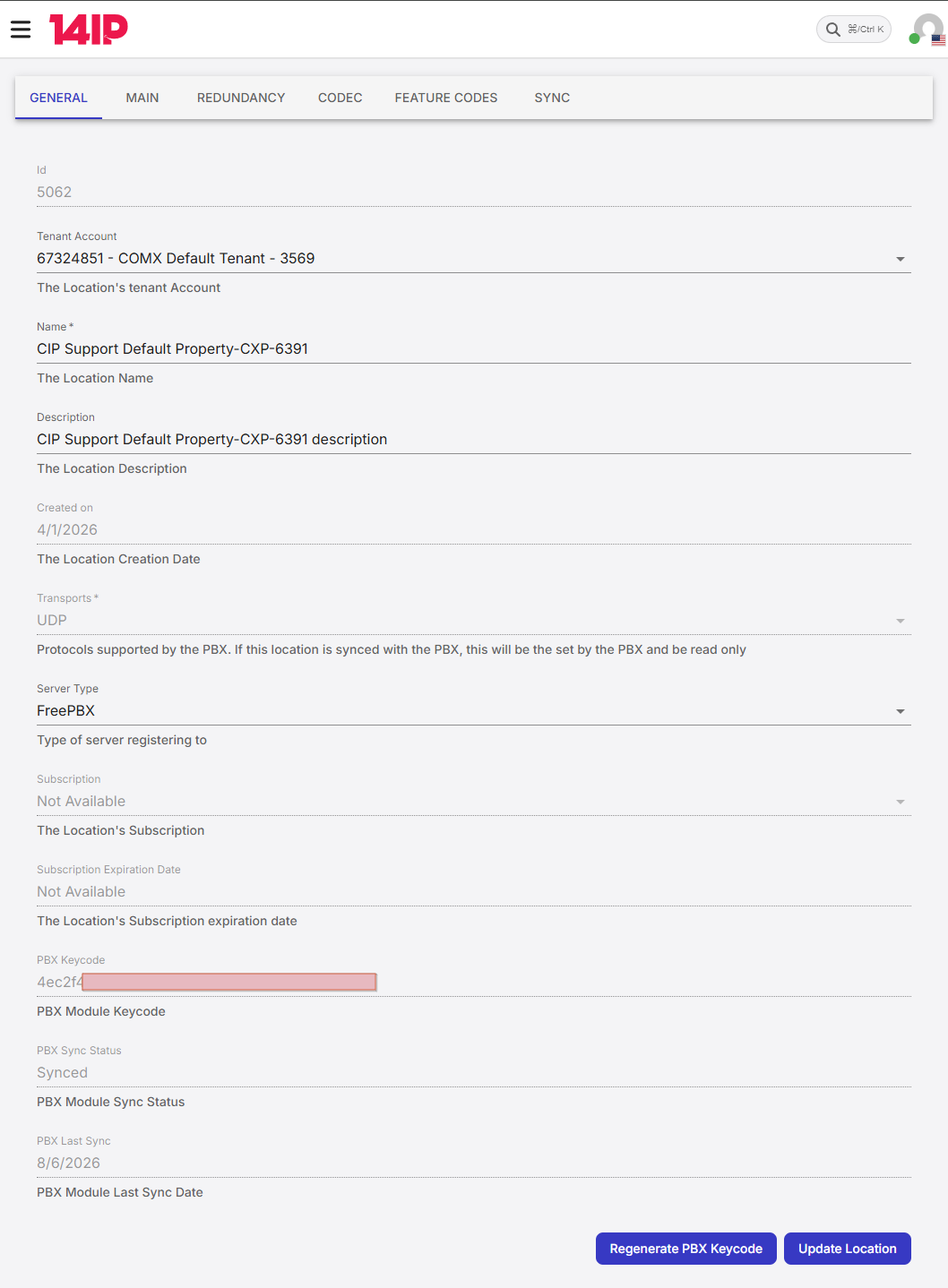
and copy the PBX Module Keycode text to sync the CDM location to your local ComXchange premise system
- Go to Core configuration --> Cloud Device manager and paste the keycode here
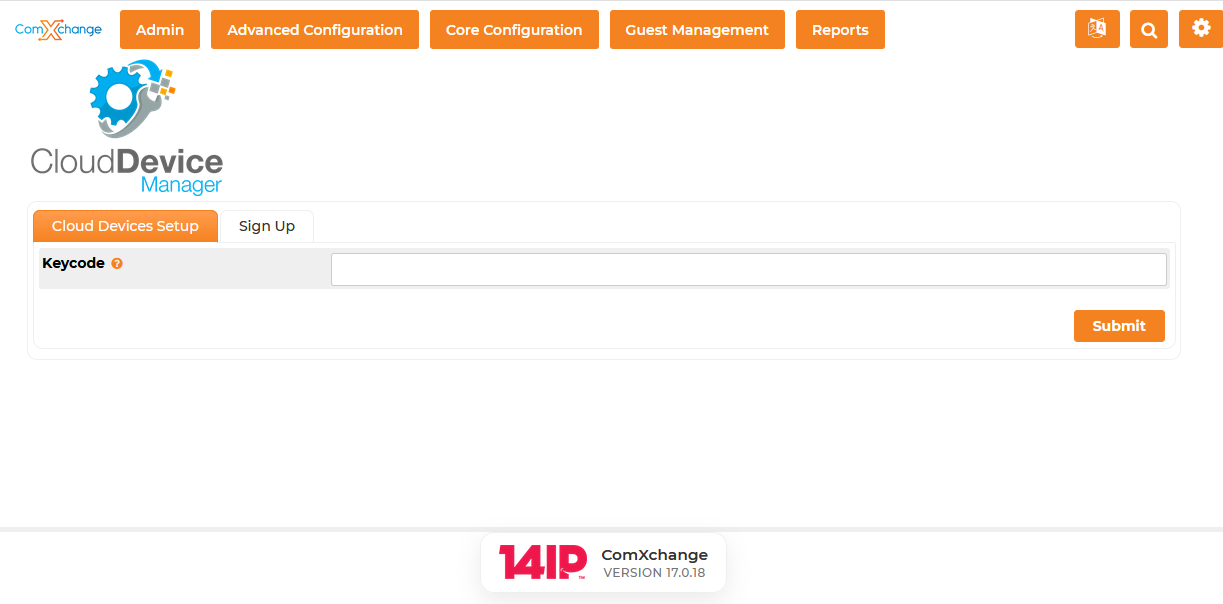
- Once the module initializes, you should see a page like this:
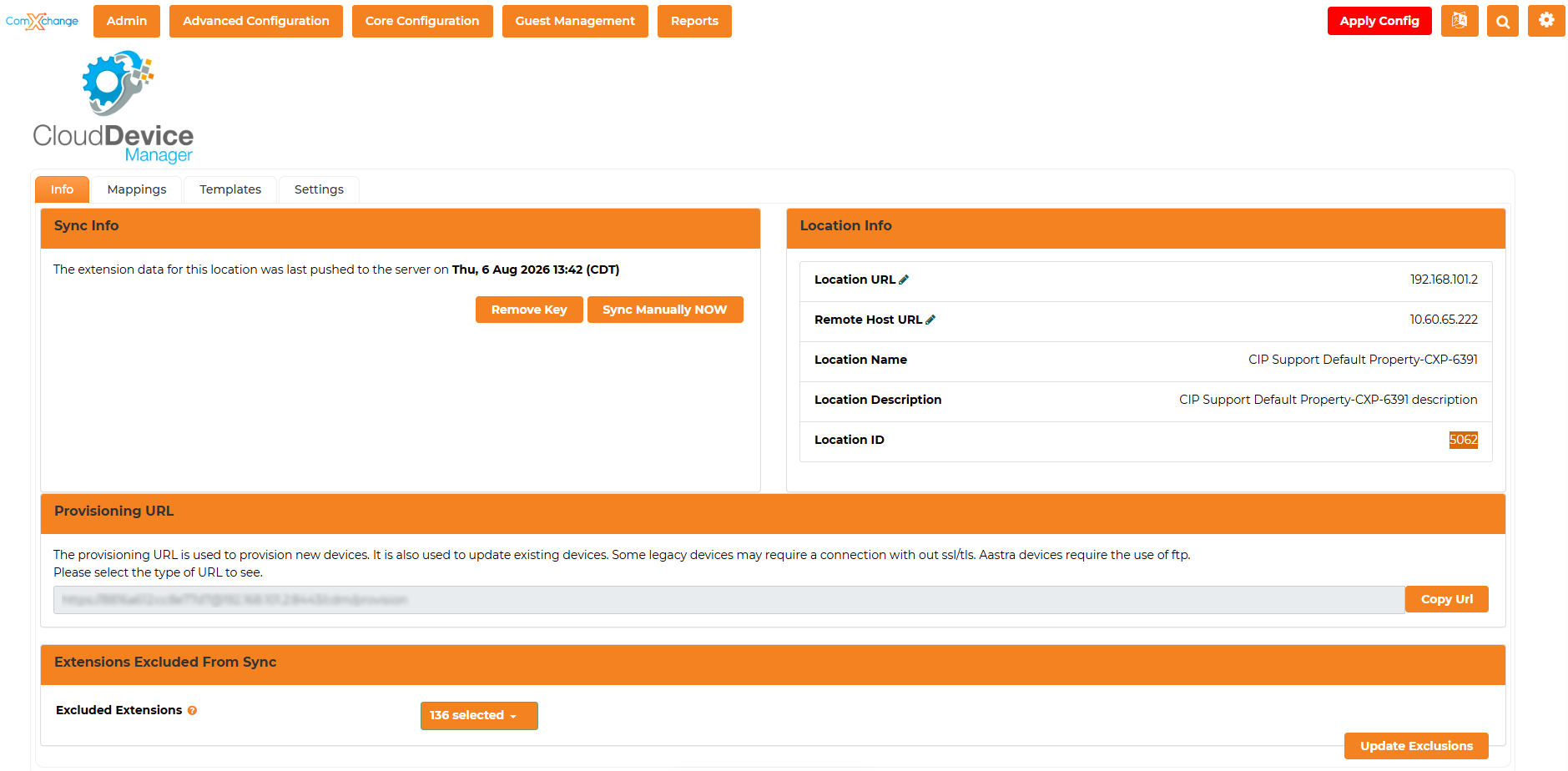
- Make sure the Location Info section is correct, specially the
Location URL and Remote Host URL fields, which will be used to provision phones on later steps. Additional settings will be synced up to the CDM portal like provisioning protocol, HTTP username, password and ports, these are taken automatically through the Cloud Device Manager module. - It is also possible to exclude certain extensions from the sync process, like guest extensions for example. To do this, go to the
Exclude Extensions option at the bottom of the page:
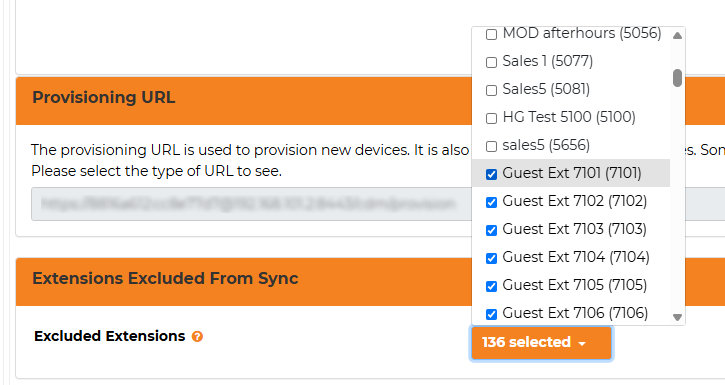
- In order to select a range of extensions, click on the check box at the beginning of the range to mark it.
- Then scroll to the last item of the range of extensions you want to exclude but don't click any checkboxes yet.
- Before clicking the next check box, hold SHIFT key on your keyboard, then click. This will mark all the checkboxes between the first one you clicked and this last one.
- Then, click on
 button to save. button to save. - After selecting all the extensions, you may need to click on
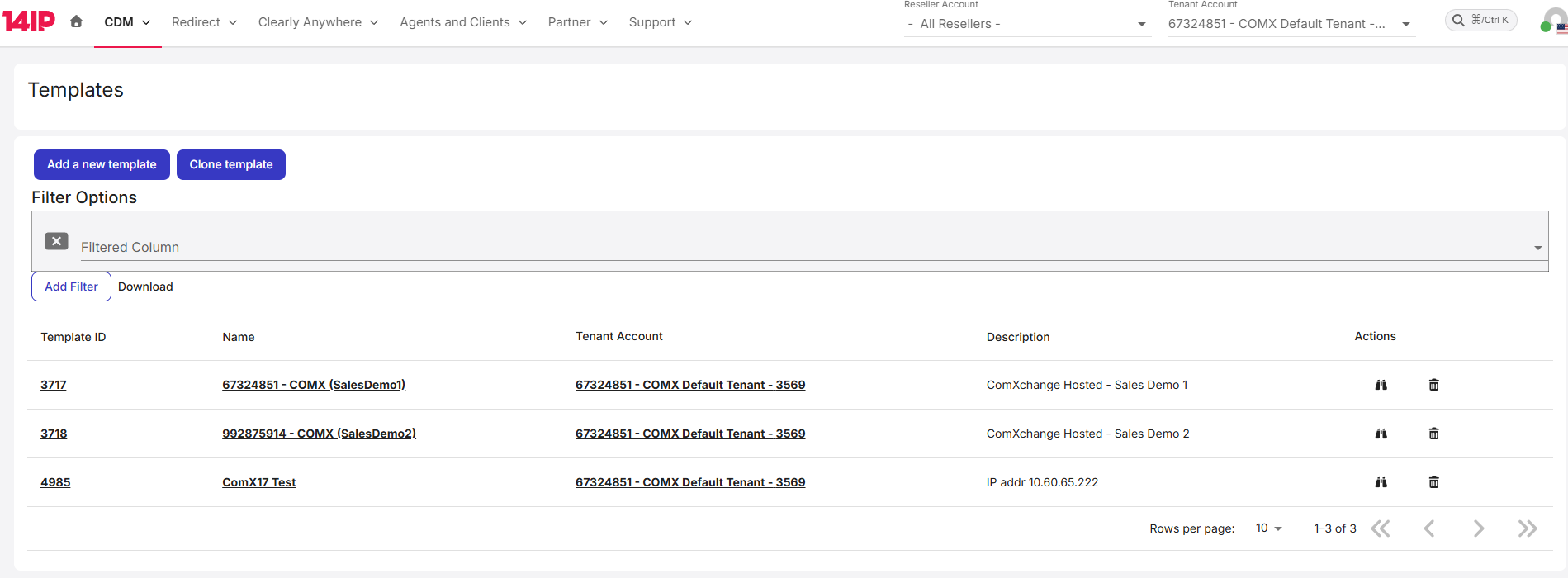
Sync Manually NOW button at the top of the page to push these changes to CDM portal. With these steps done, you can go back to CDM web portal to create templates and models as required. 2 Creating Templates and models Once the premise system is synced to Cloud Device Manager CDM, you are ready to begin creating templates and models to customize the phones button keys and other settings. 2.1 Adding a template - Go to https://devices.clearlyip.com/dashboard/cdm/template to list all available templates, here you can filter them by tenant, which is important after some properties have been created and the number of different templates with similar naming may be large and get confusing.
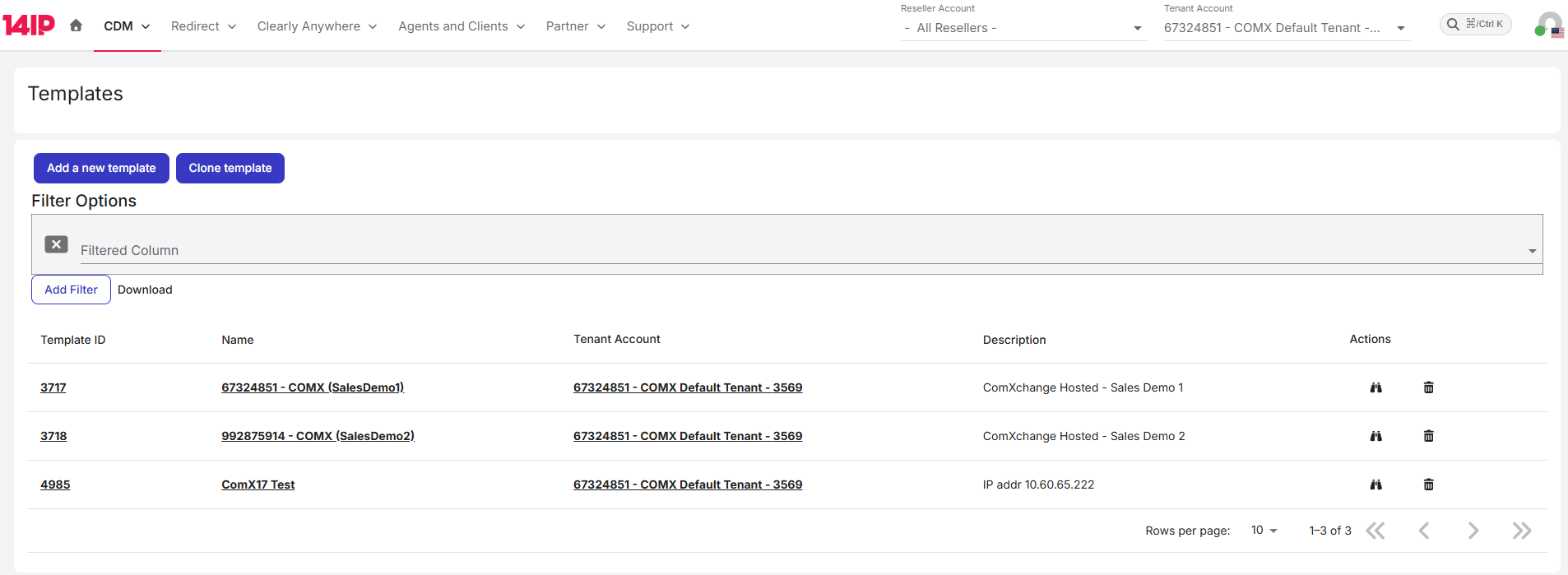
- On this page you can,
Add a new template, Clone template to copy an existing one, filter among existing templates or search with Add Filter, or Download the template list with Download - Click on
Add a new template to create one:

- Select the tenant account that will own this template, if you have selected a tenant on the upper dropdown list, it should be already pre-filled with the same tenant
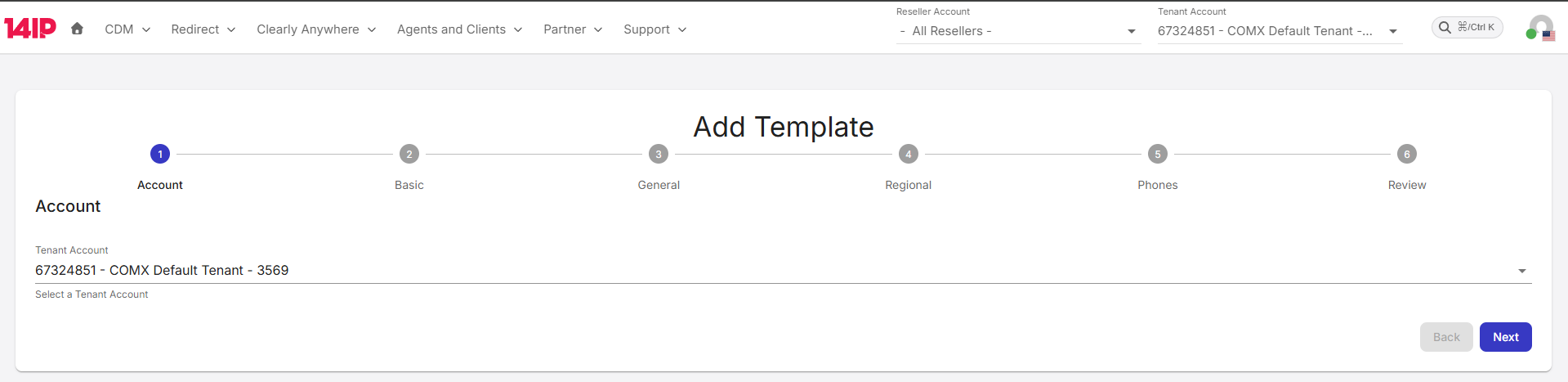
- Click
Next and enter the Template basic information as seen on screenshot below:
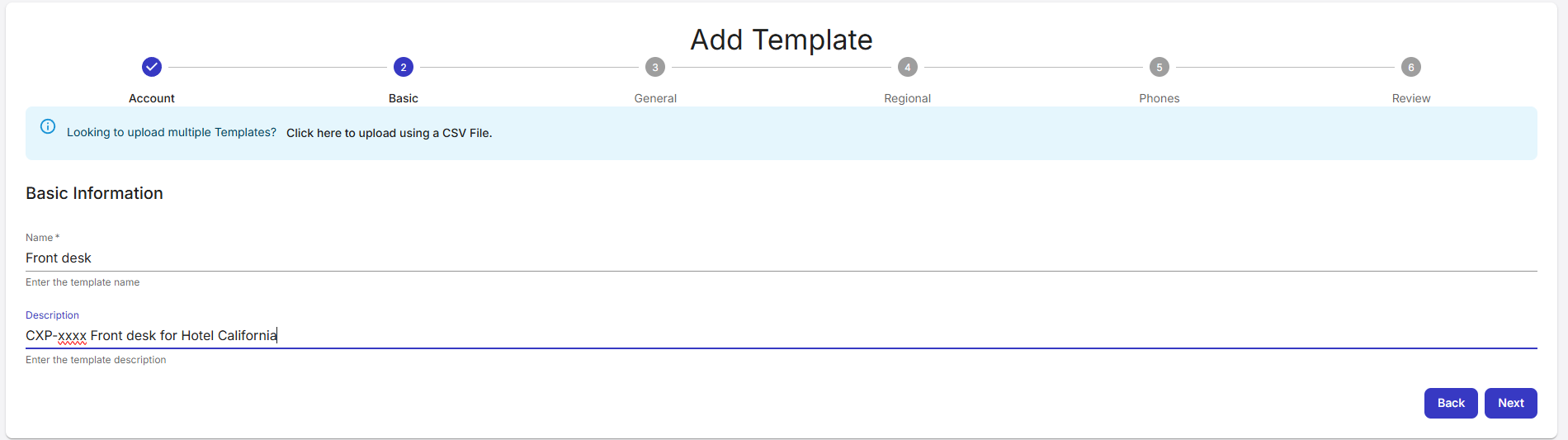
It is recommended to put a descriptive name on the template, and then include some relevant, searchable information on the description, like the CXP-siteid to be able to filter them later if required. Click Next - Fill the general template information, if you have worked with Clearly Devices module, this page contains very similar fields:
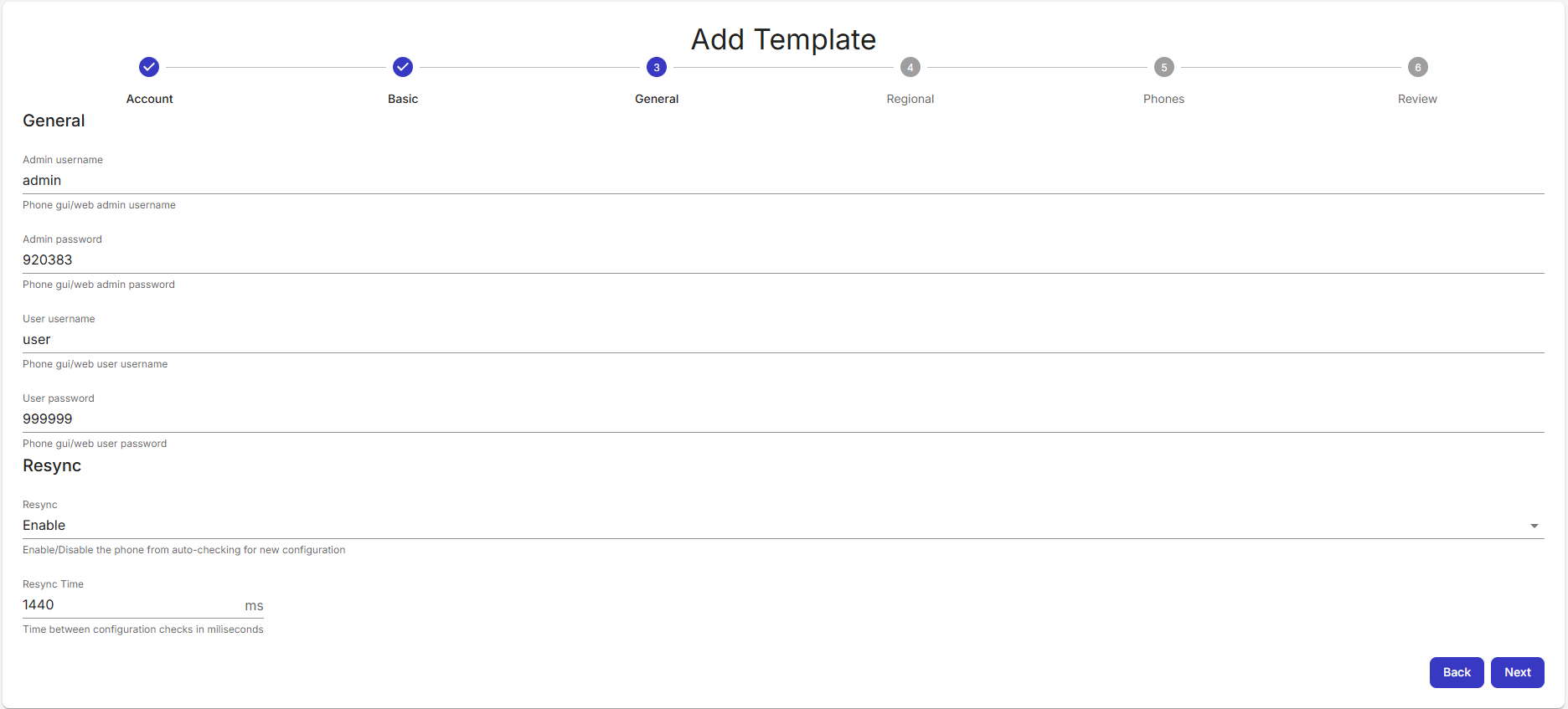
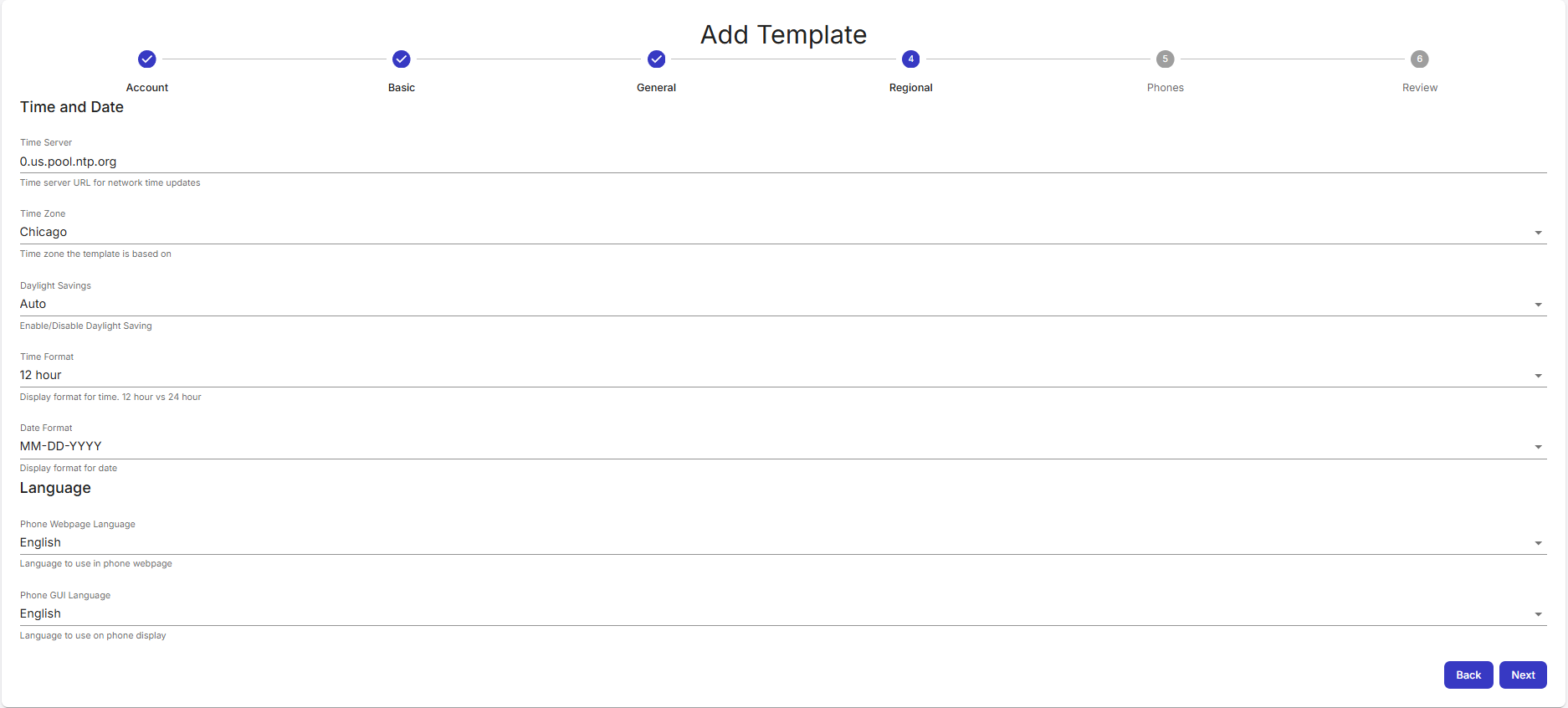
Click Next - Fill the Regional Settings as needed, for local ComXchange systems, you may want to make the NTP server the same as the ComXchange LAN IP, otherwise phones may not be able to sync time correctly.
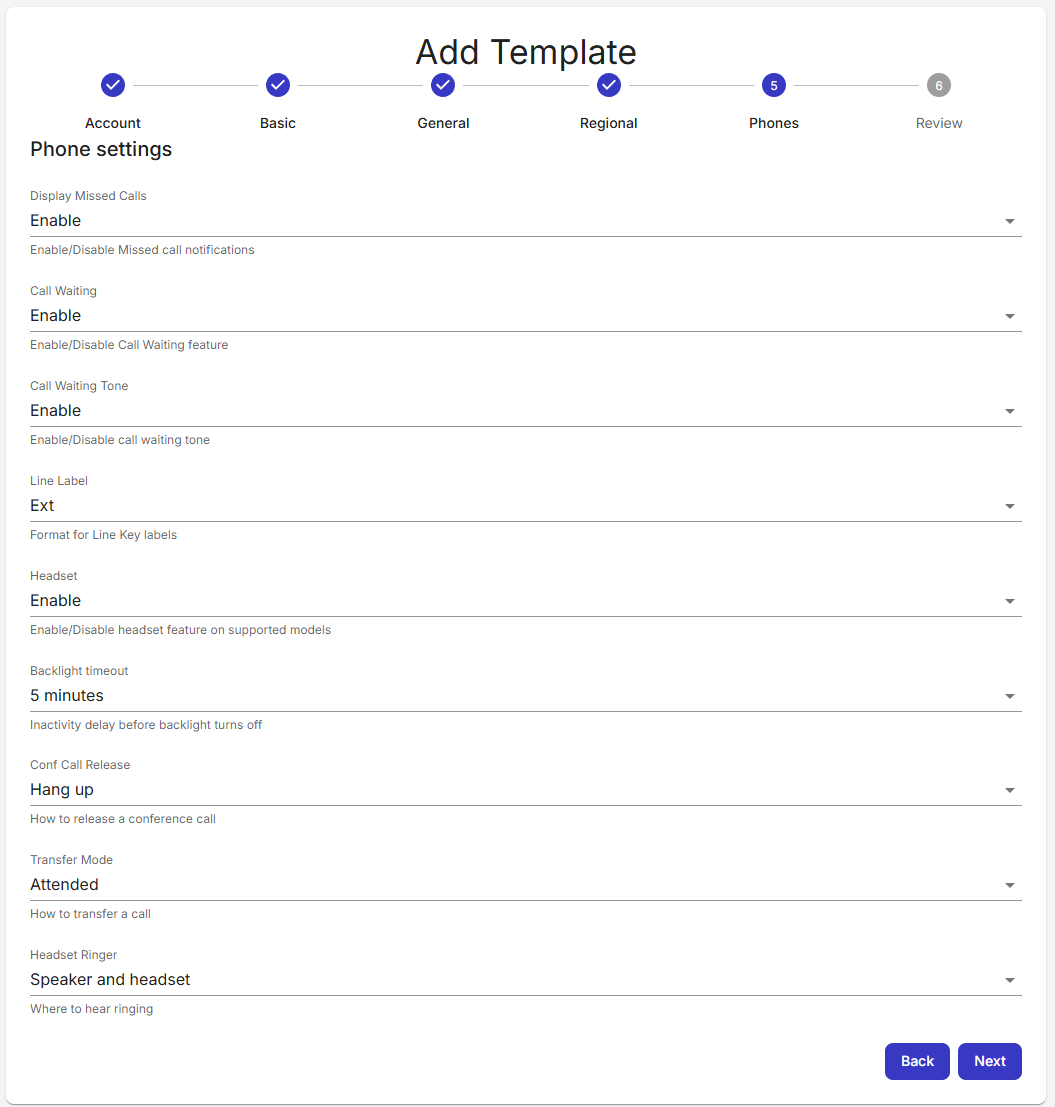
Click Next - Define misc. phone settings like call waiting or Backlight timeout, you can also leave the defaults which are usually the standard settings on most phones:
Click Next - You will be presented a Review section, like the one below:
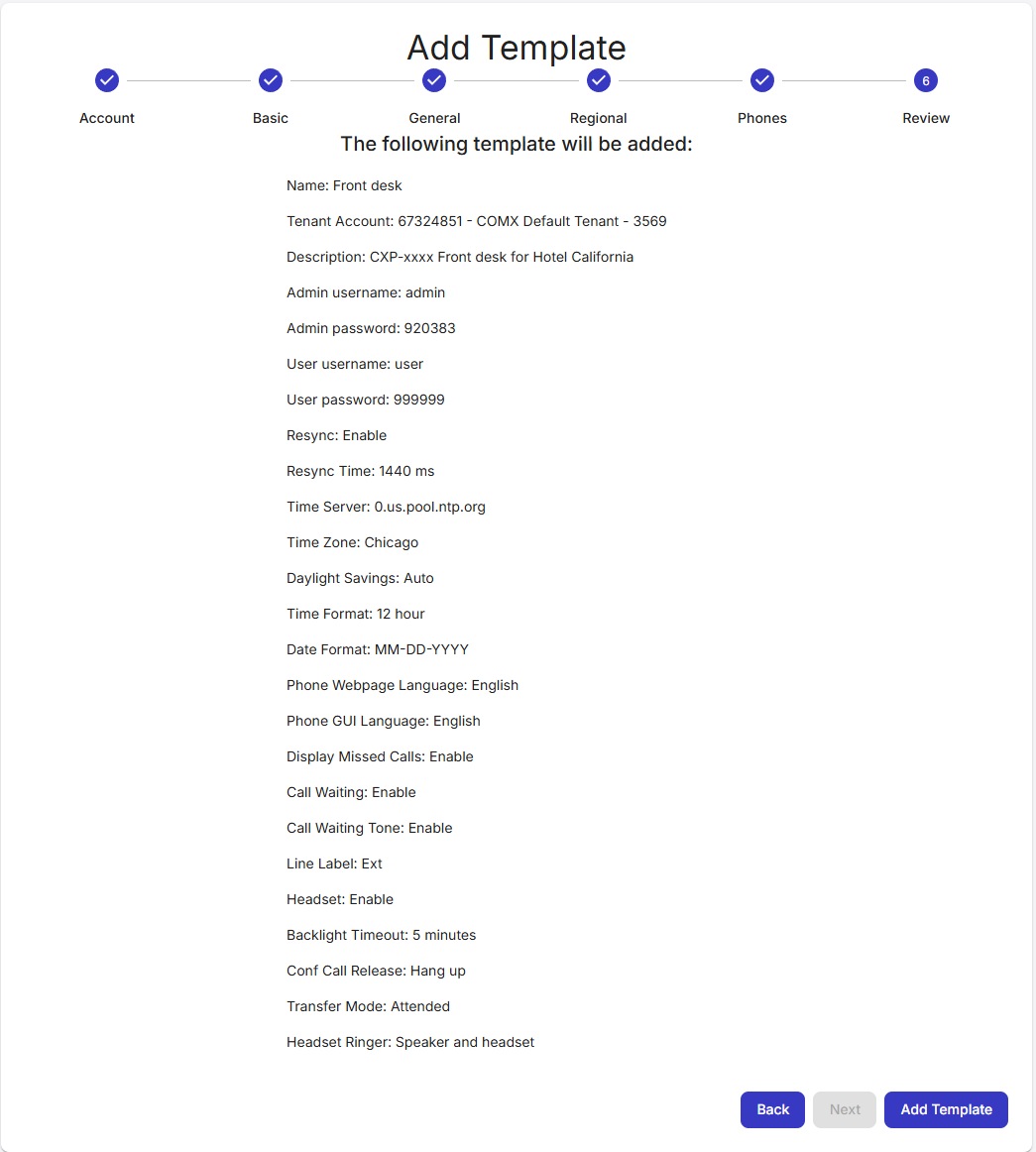
If all settings seem correct, click on Add Template - If all went OK, you should see the following confirmation screen:
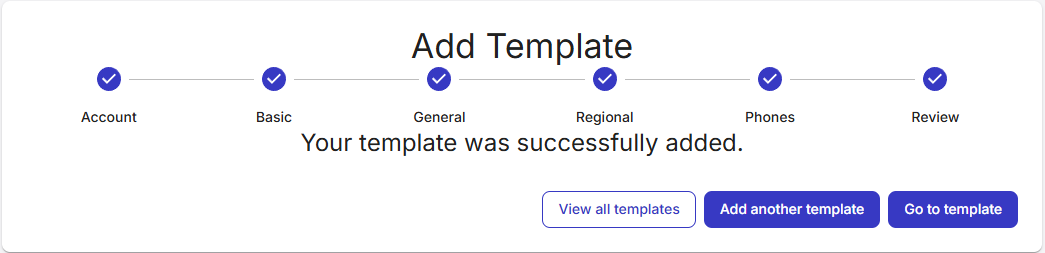
- You can
Add another template or click on Go to template to begin adding models to the newly created template.
2.1-a Advanced template creation via CSV import If you have already created some templates, and want to duplicate them into a new property, or for example you have backed them up and need to reimport to a new account, the CSV import functionality will be useful to reduce the repetitive tasks and streamline your deployment processes. - Begin by clicking on
Add a new template:
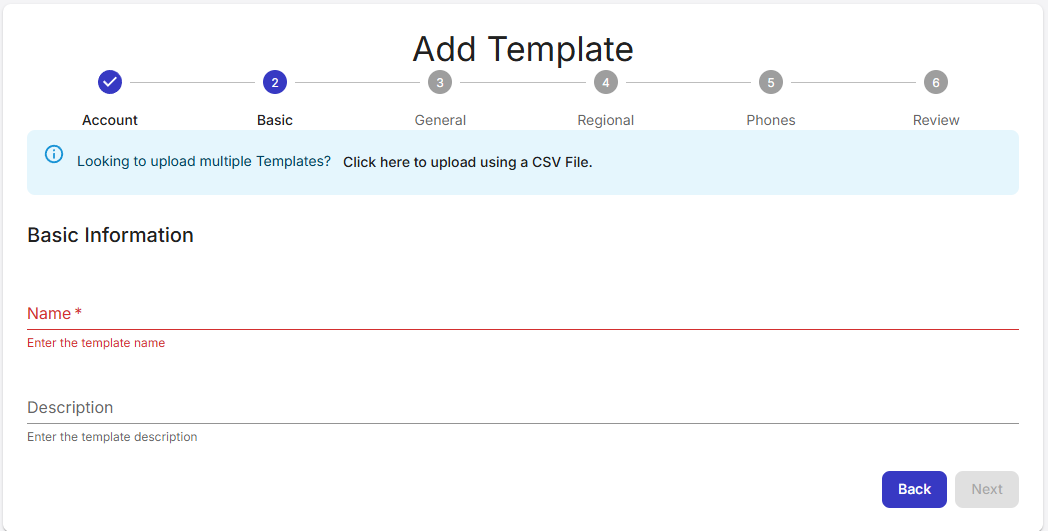
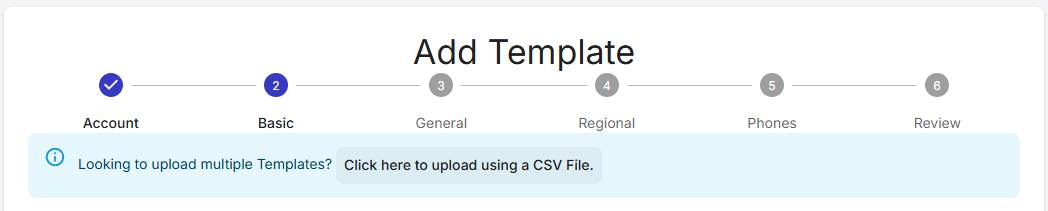
- Instead of clicking
Next, click on the text that says Click here to upload using a CSV file
- This will take you to a page similar to this one:
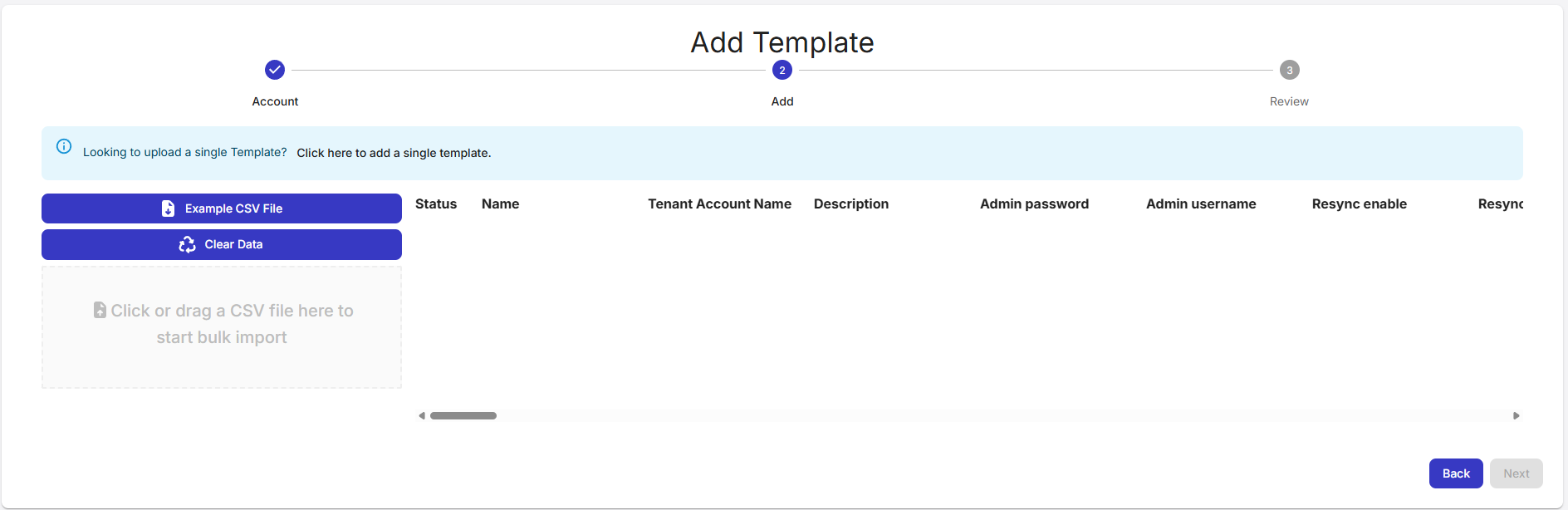
- If you don't have any templates created, you may download an example format to fill out using a regular spreadsheet program like Calc or Excel. To download a file click on
Example CSV File - Edit the fields as recommended here, take special care into the case sensitivity of fields.

- Once you have your template ready, drag it onto the gray box to start uploading
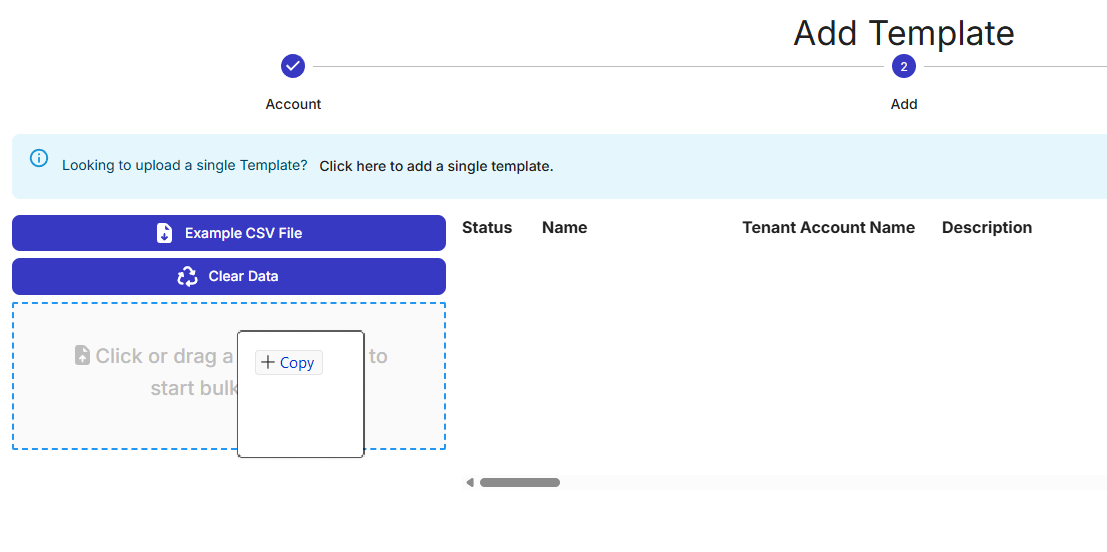
2.2 Adding a model Once a template is created, you can create models to define line keys, BLF, quick dials, background images and other phone related settings. - Go to the templates page at https://devices.clearlyip.com/dashboard/cdm/template Then click on the binoculars icon on the template you need to create a model for.

- This will show you the following page: An important field here is the
id of the template ID, this will allow you if you prefer, to map several extensions via CSV upload using this id along the model ID (which we're creating in the next steps).
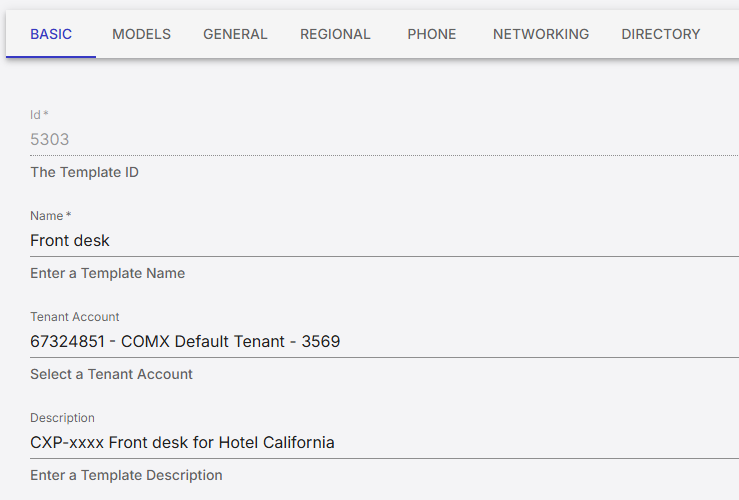
- Click on the
Models tab to create a new model, a page like the following will be shown:
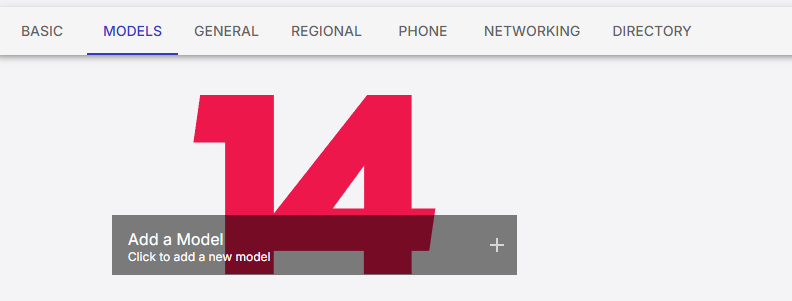
- Click on
Add a Model large button: - This will bring up a wizard with some steps in order to create the model:
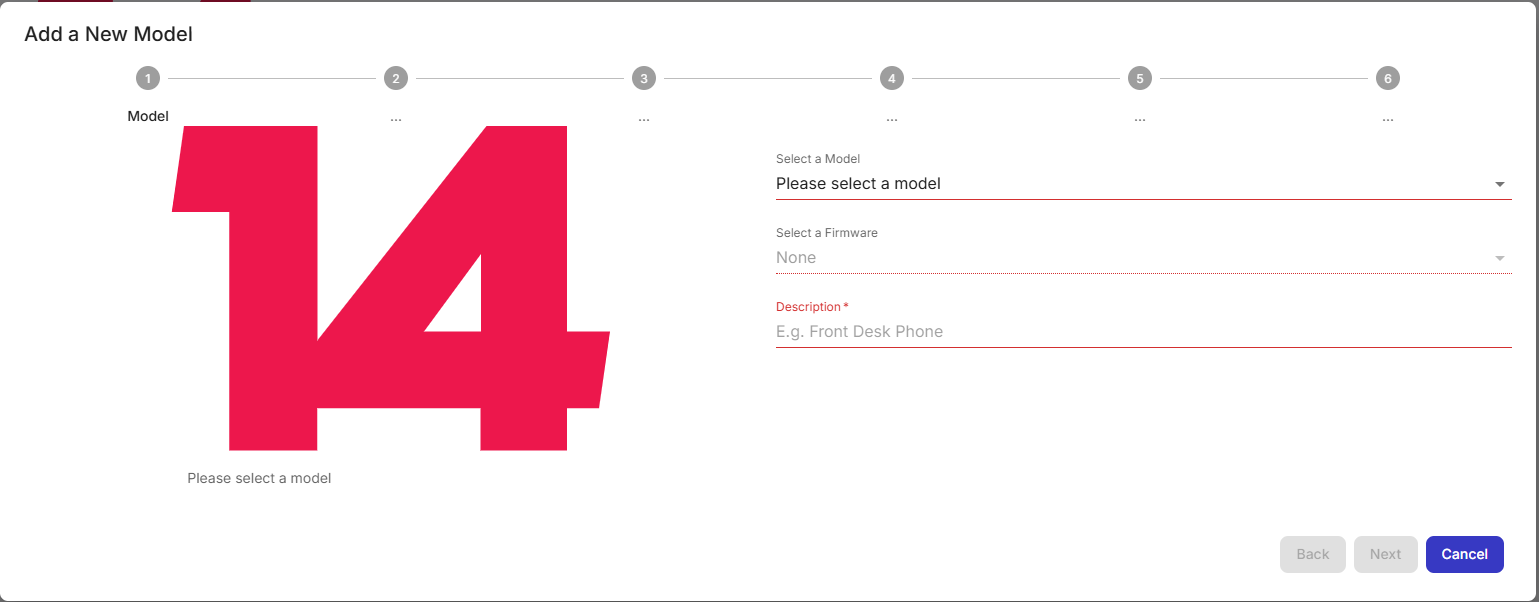
- ( 1 ) Model section. Begin by selecting a model, for example our CIP 270
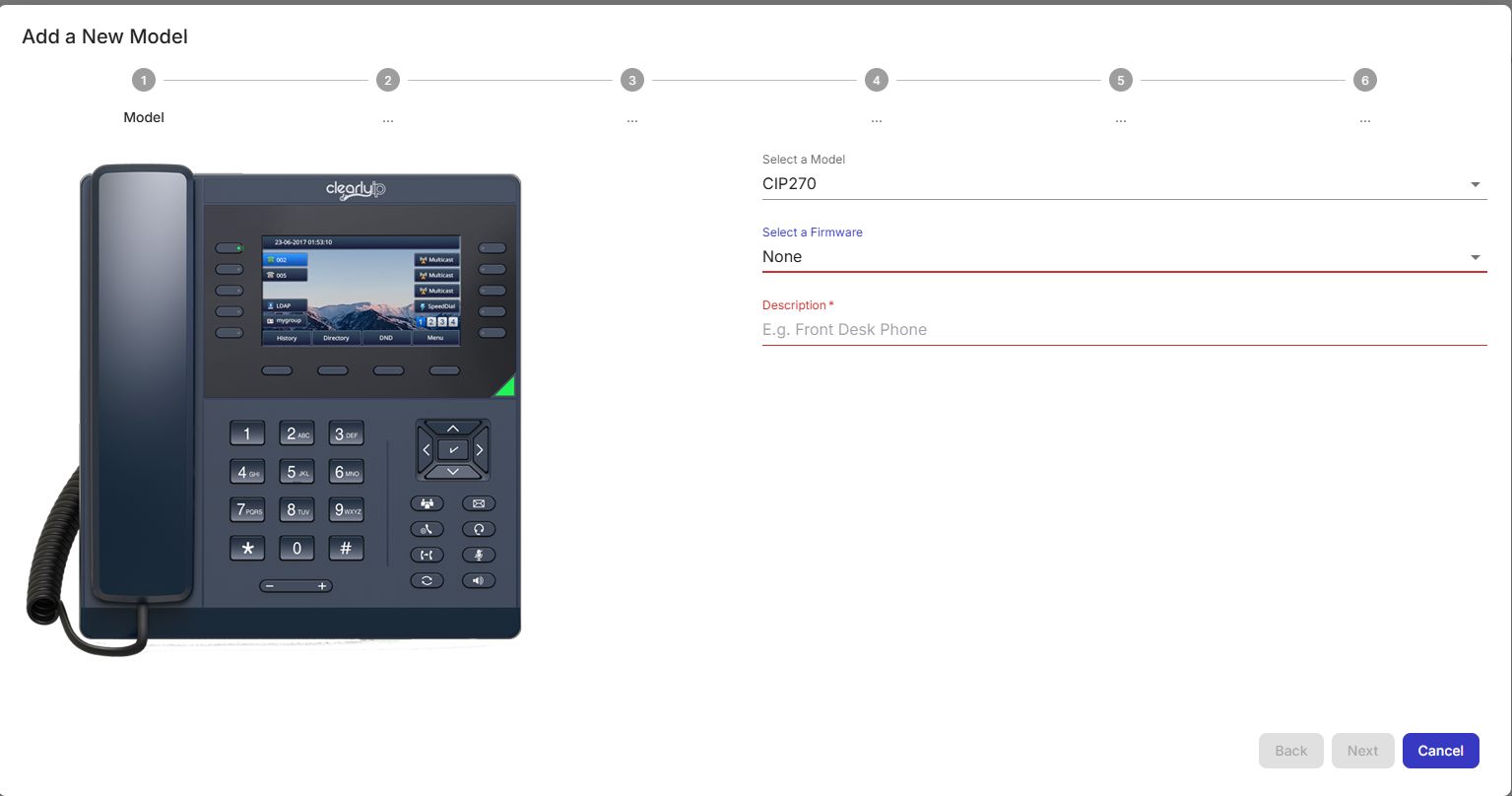
- Then select firmware, some models have more than one, also enter a description, this will be the model's name
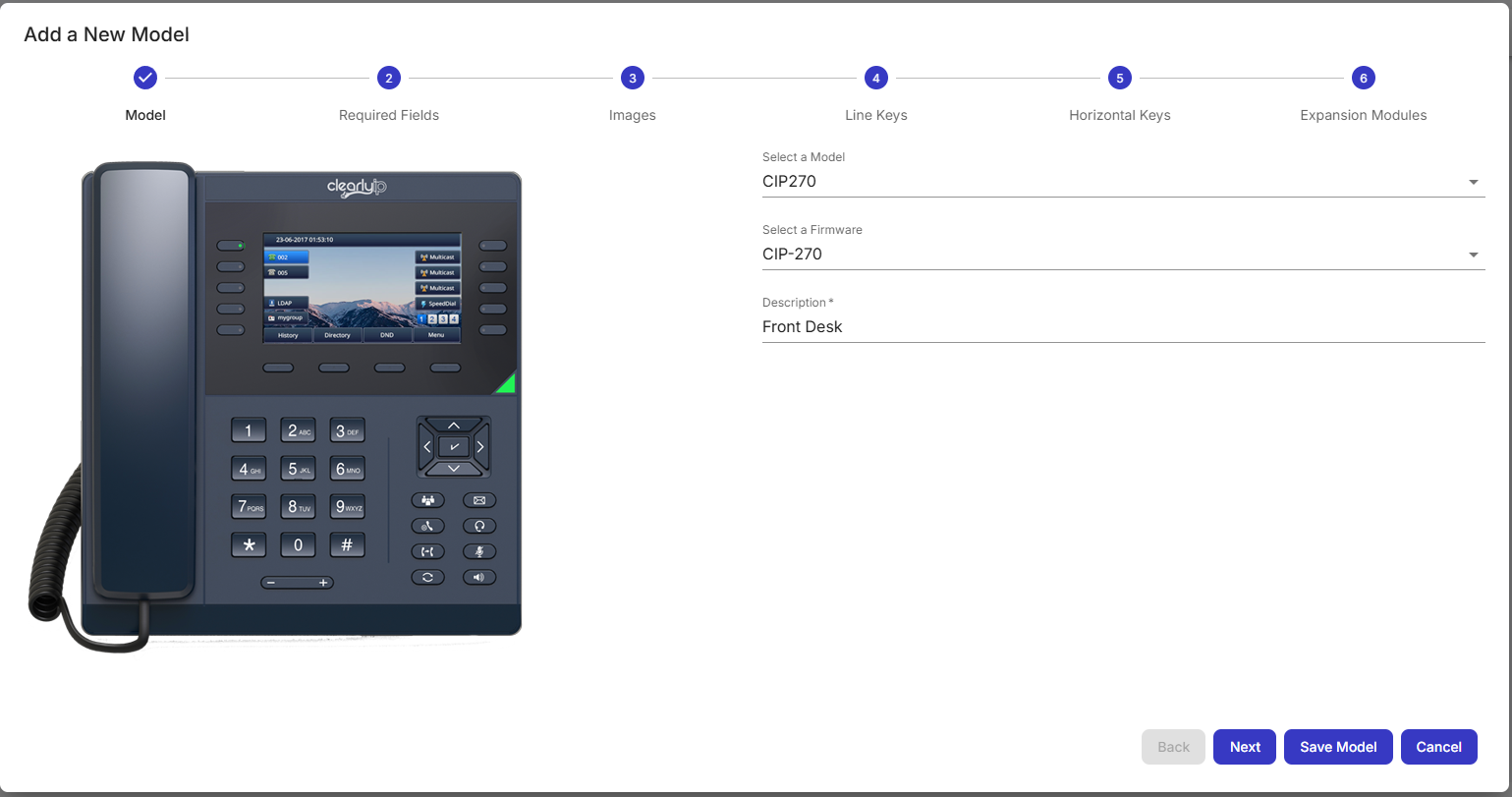
- You can either click on
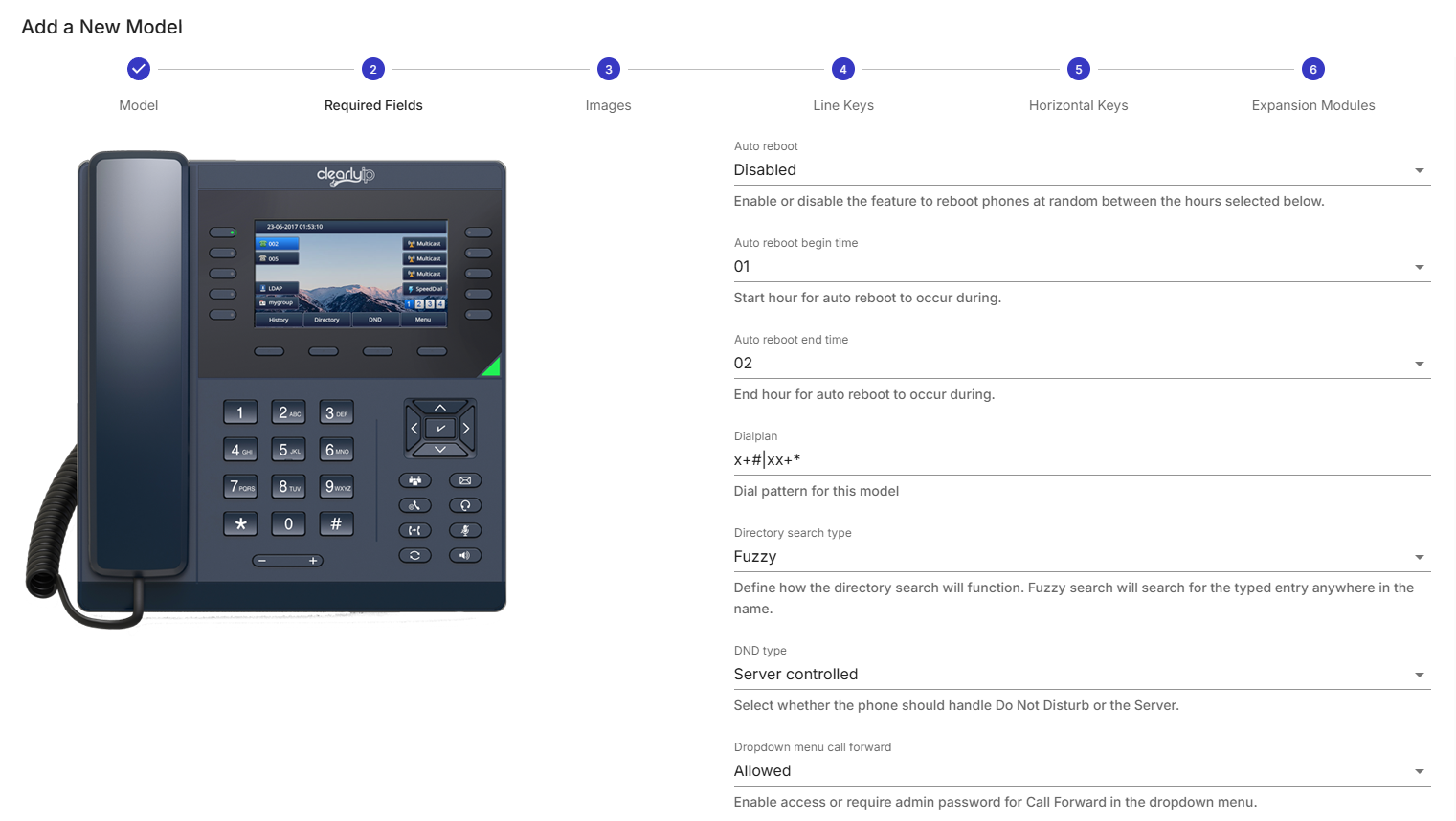
Save model to use the default values for the rest of fields HOWEVER It is recommended you at least define 1 line key before saving the model as some phones won't allow placing calls with no defined line keys, you can click directly over the  icon to go to that step. Or you can click icon to go to that step. Or you can click next to customize the parameters as needed. We'll go through each screen in order, so assume you clicked next. - ( 2 ) Required fields section, normally leaving the defaults should be good for most users, however you can tweak these parameters as needed. Some models may provide more or less options depending on their capabilities.
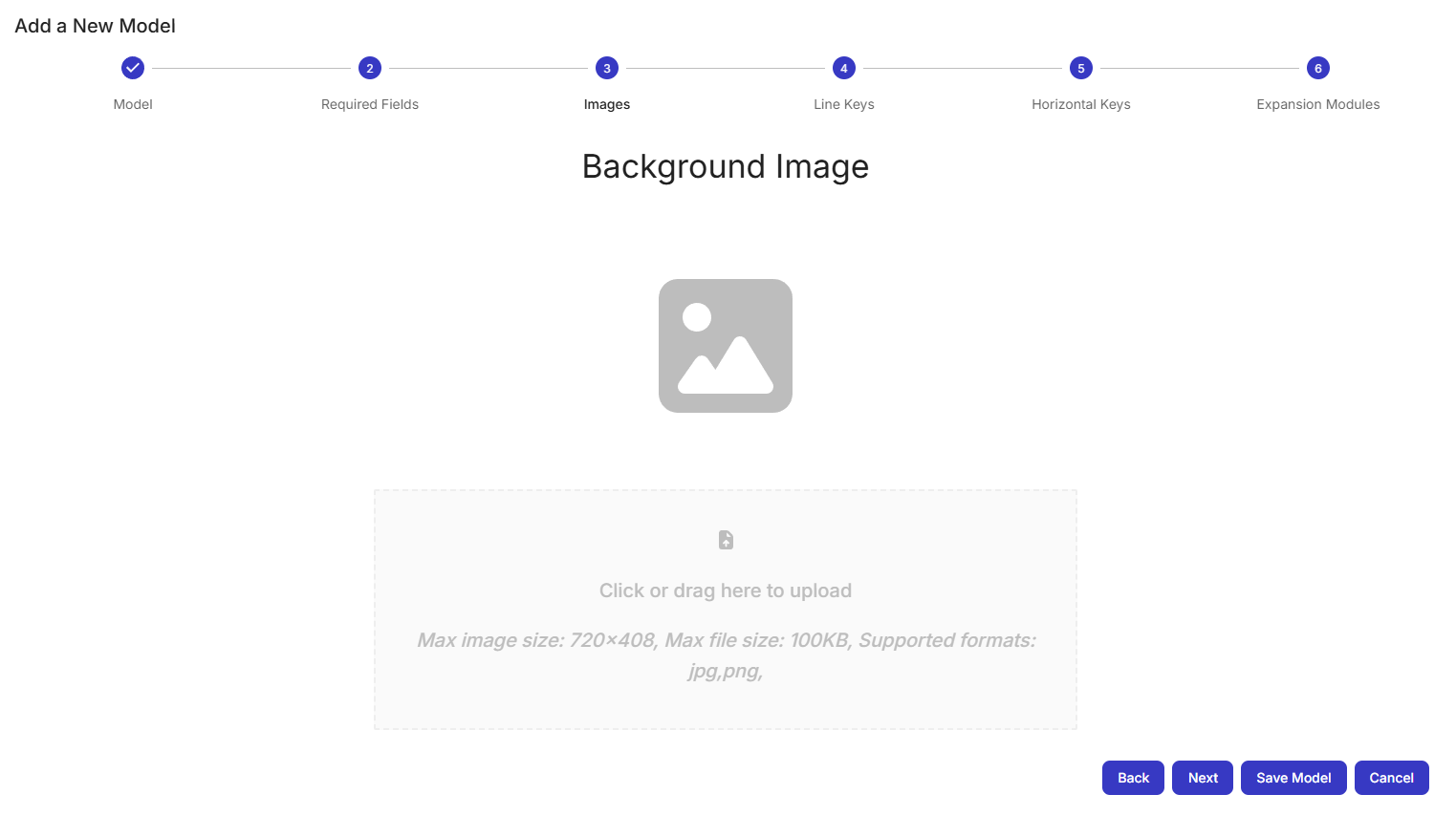
- ( 3 ) Images section. Select a suitable background to set it up on your phone model. Make sure to follow the format and dimensions guidelines stated for your model, as shown on the screenshot below:
- ( 4 ) Line Keys section. Configure at least one key as Line key, this is highly recommended as some phones won't allow you to dial out unless one key is mapped as line. Label and Value should be left empty for keys as type
Line as below:
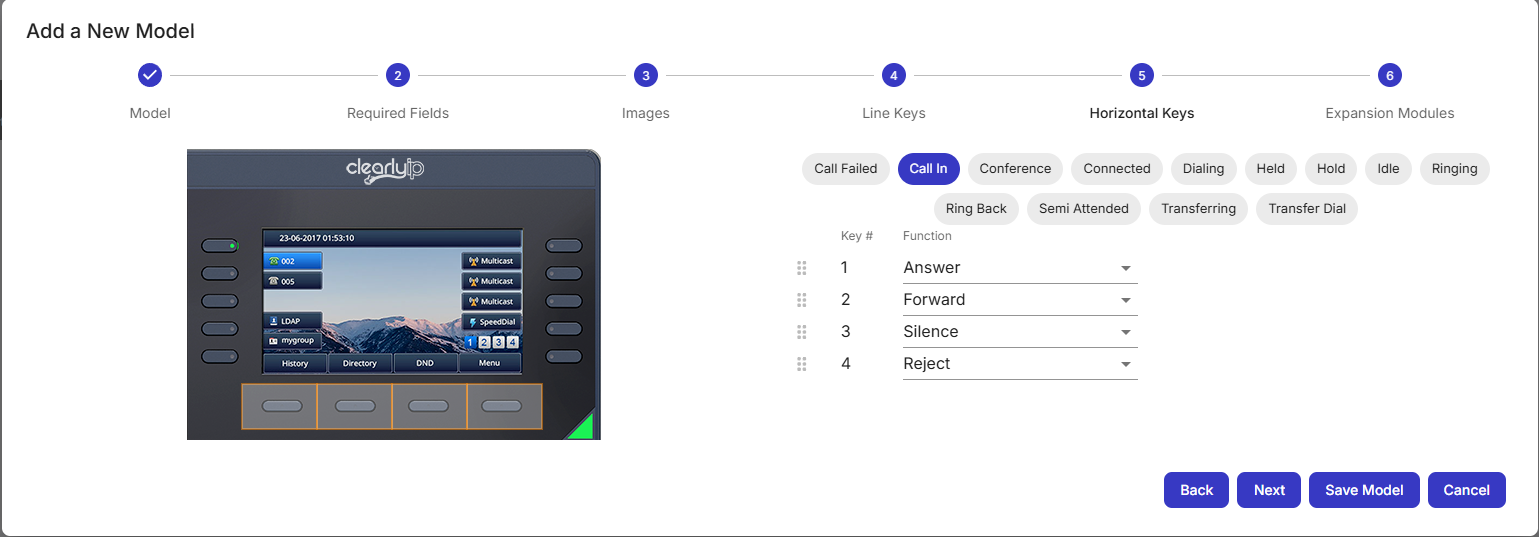
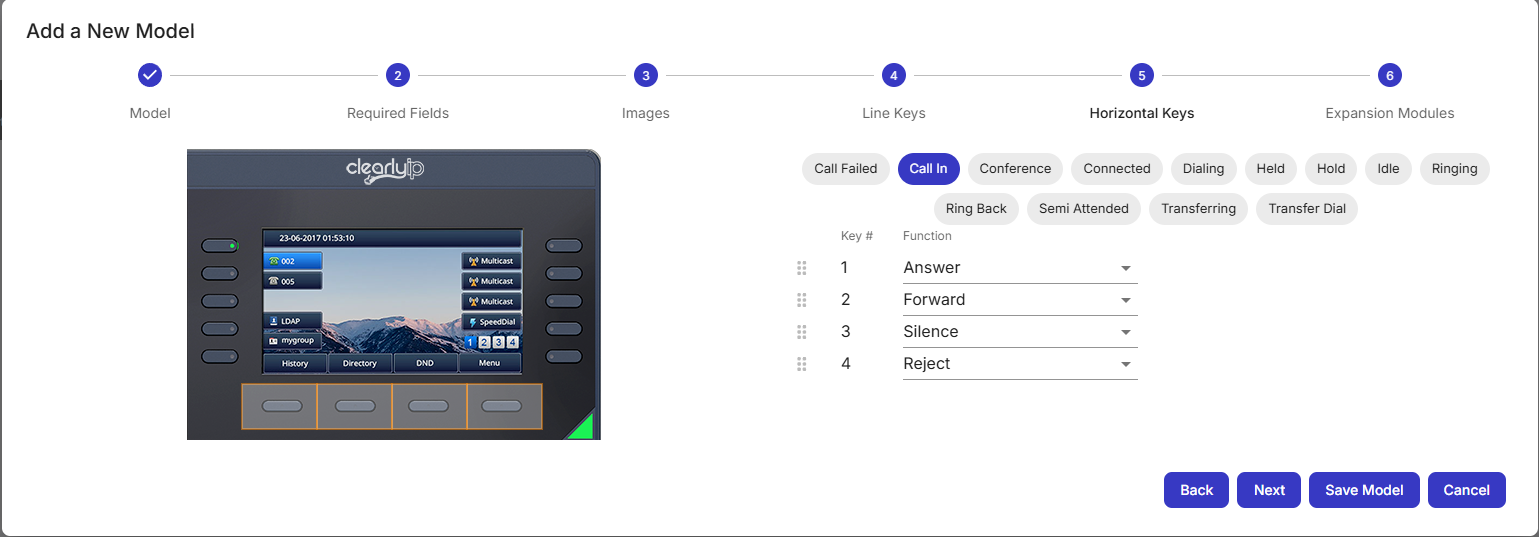
Normally you leave registration (reg dropdown field) as 1 for the line, however some advance usage scenarios may require that you set two different extension numbers on the same phone. For these scenarios you set up the line keys as registration numbers different than 1 and then set the same reg number on the Extension mapping steps afterwards. For phones with several keys, you will see a Next Page button, to map all the available keys the phone supports. - ( 5 ) Horizontal Keys section. This is similar to other provisioning modules pages, there are buttons to list the different phone status and the available keys to show on them. Click on the circled buttons above to switch between available status for the phone and then you can change the keys as needed. NOTE: Normally these keys are mapped by default and most users DO NOT need to alter them, unless you know what you are doing, it is not recommended to remove or change these mapped keys, as undesired behavior may be introduced if done improperly.
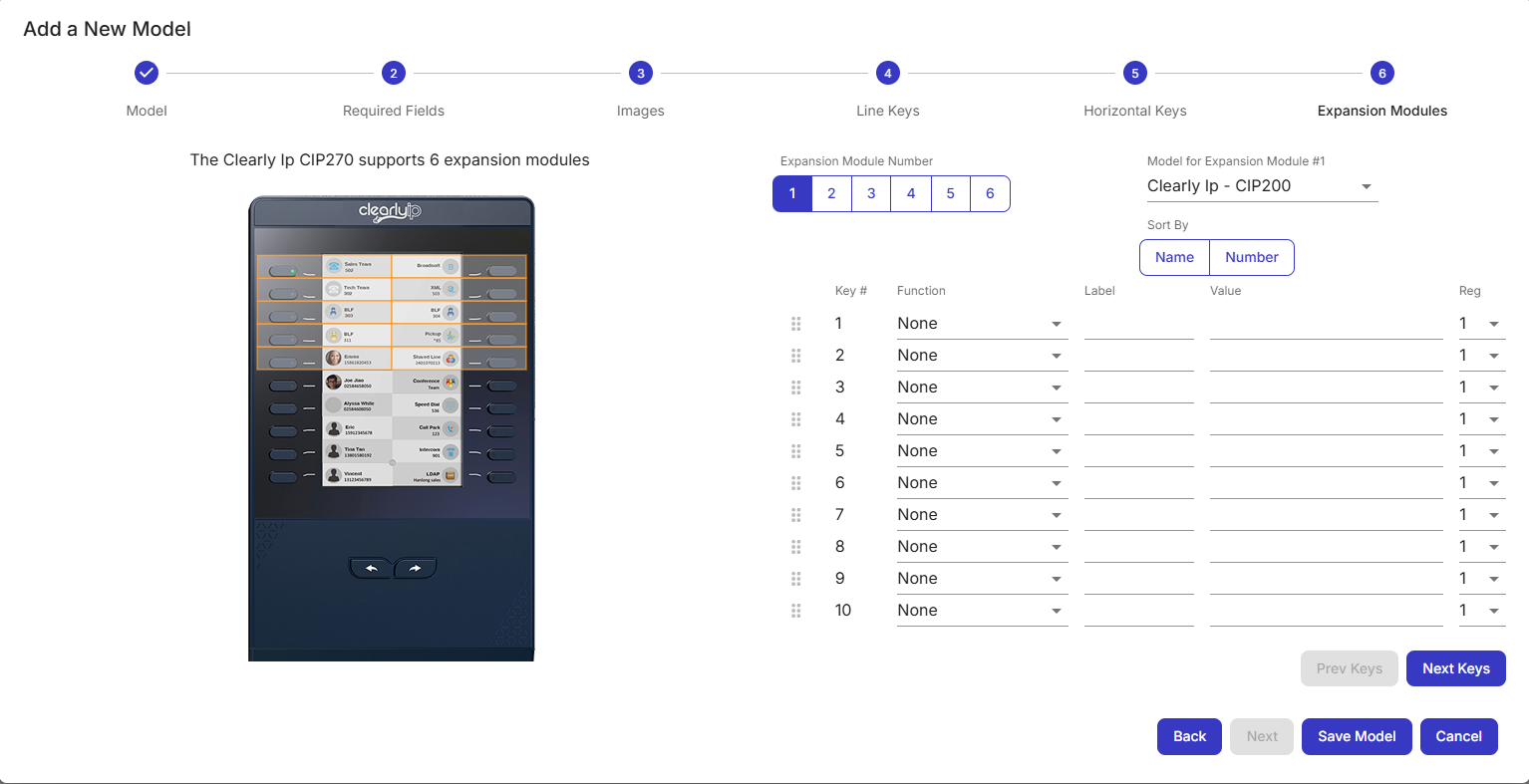
- ( 6 ) Expansion module section. Some phones may allow to connect expansion modules for additional set of keys, if the model supports it, this section will be enabled, and you should see a page similar to this one:
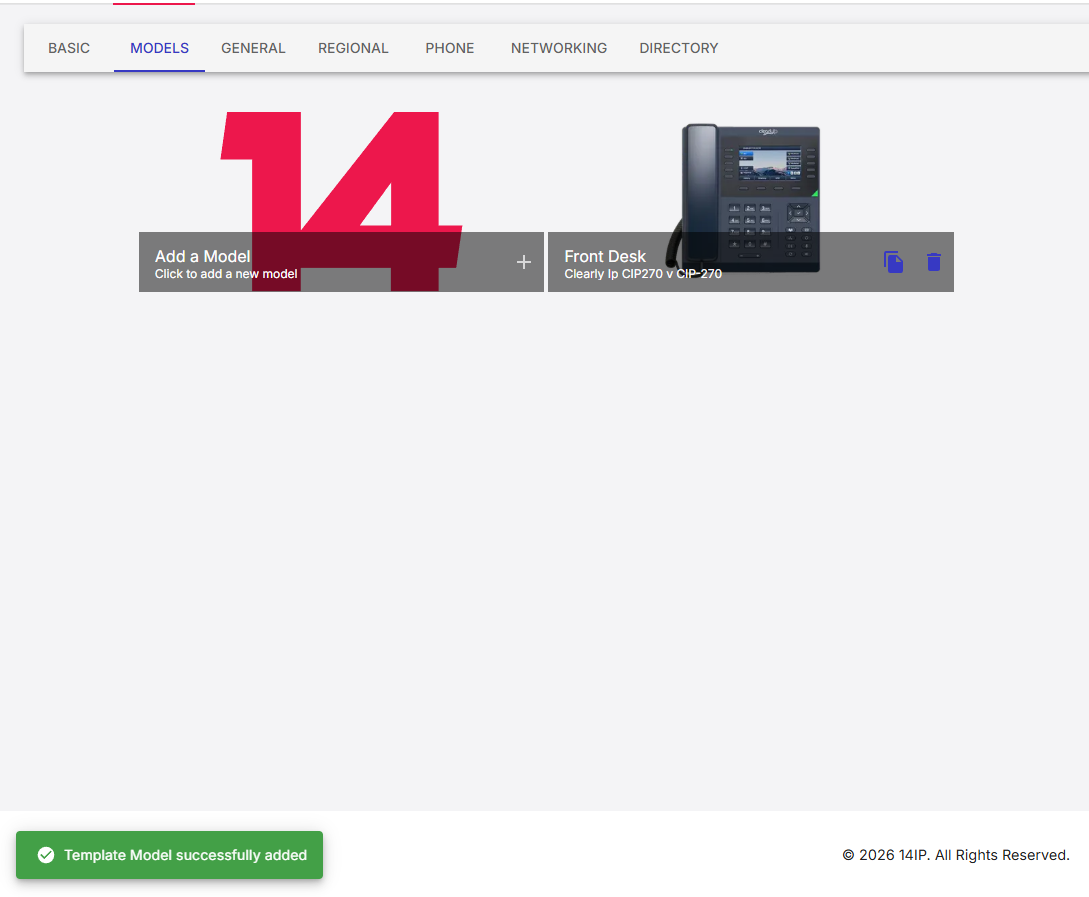
- Once all changes are configured, click on
Save Model to finish adding this model to the template.
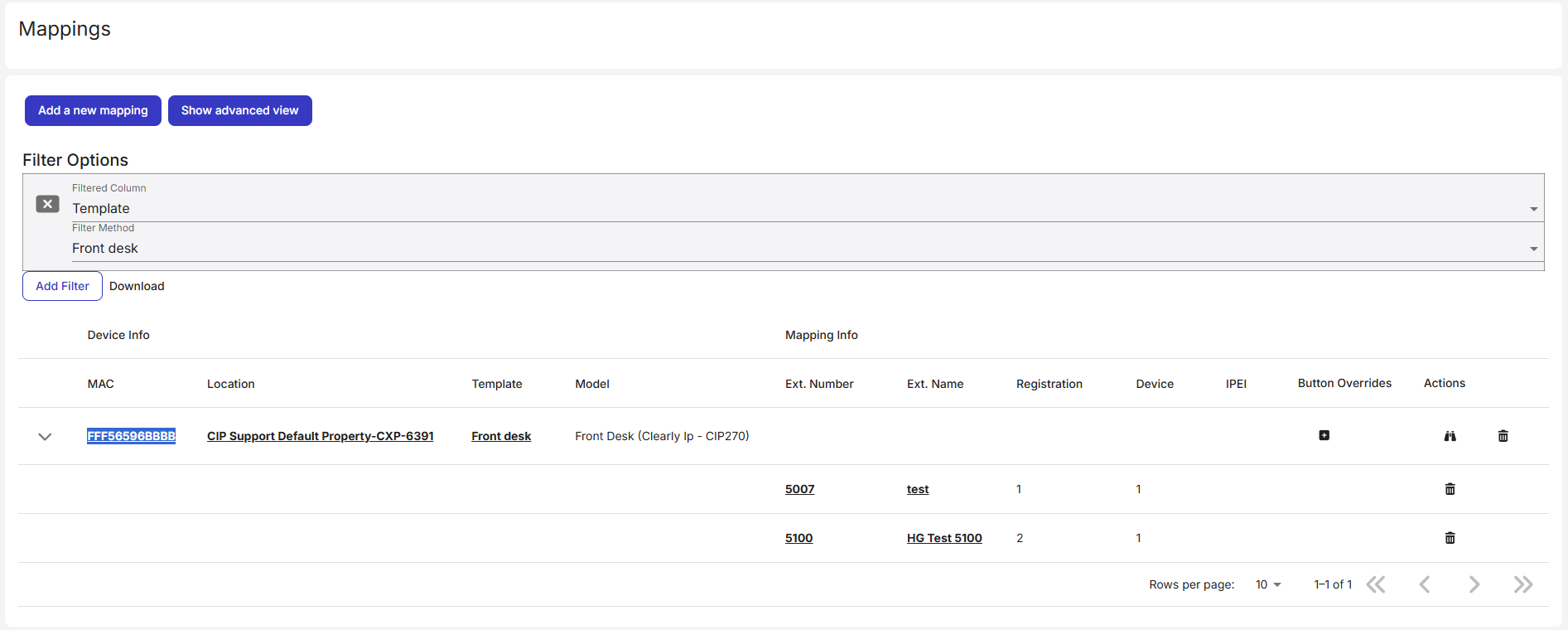
3 Creating mappings After models and templates have been created, create the mappings for associating both of them with an existing extension. When going to https://devices.clearlyip.com/dashboard/cdm/mapping you will see created mappings for your tenants available options are listed like the screenshot below: 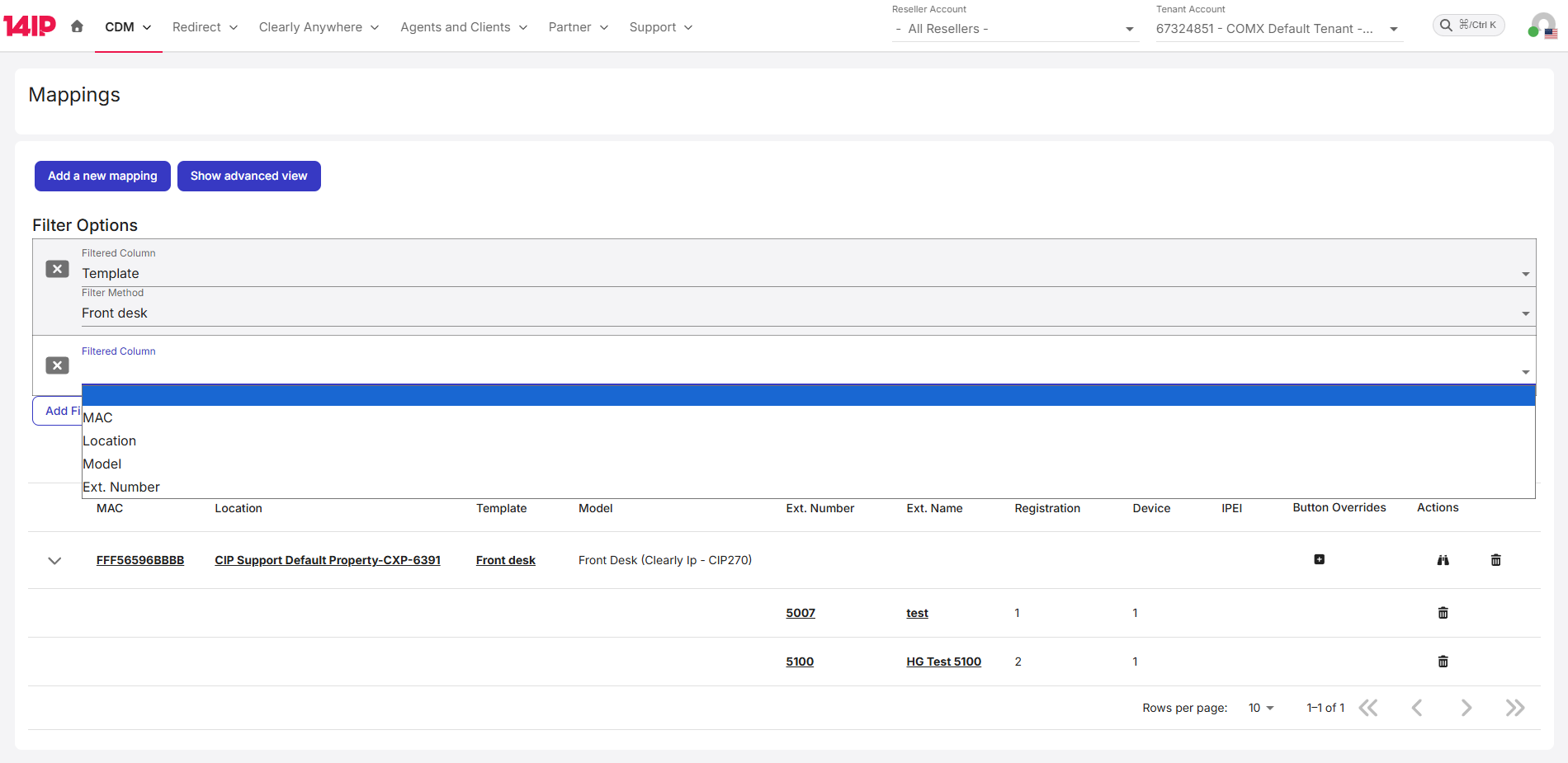
Add a new mapping: Click this button to create a mapping. Show advanced view: Click this to show additional columns on the list. Add Filter: Click this button to show results based on filter criteria like: MAC, Location, Model, Ext. Number You can click on the row items to go to the related page, for the image above clickable fields in order are: MAC, Location, Template, Model, Ext. Number, [+] item will allow to override buttons mapped on the model,  binocular icon will have the same effect as clicking the binocular icon will have the same effect as clicking the MAC address field, while the  icon will delete the mapped extension. icon will delete the mapped extension. 3.1 Adding a new Mapping - Go to https://devices.clearlyip.com/dashboard/cdm/mapping
- Click on
Add a new mapping button.

- ( 1 ) Select a location section. The following dialog will appear, select the Location, if not already selected, if you don't see your desired location, make sure the proper tenant is selected:

- ( 2 ) Template and Model section. Fill the mapping details as the screenshot below, Templates listed here will be filtered by the
Tenant Account selected at the top bar of the page:
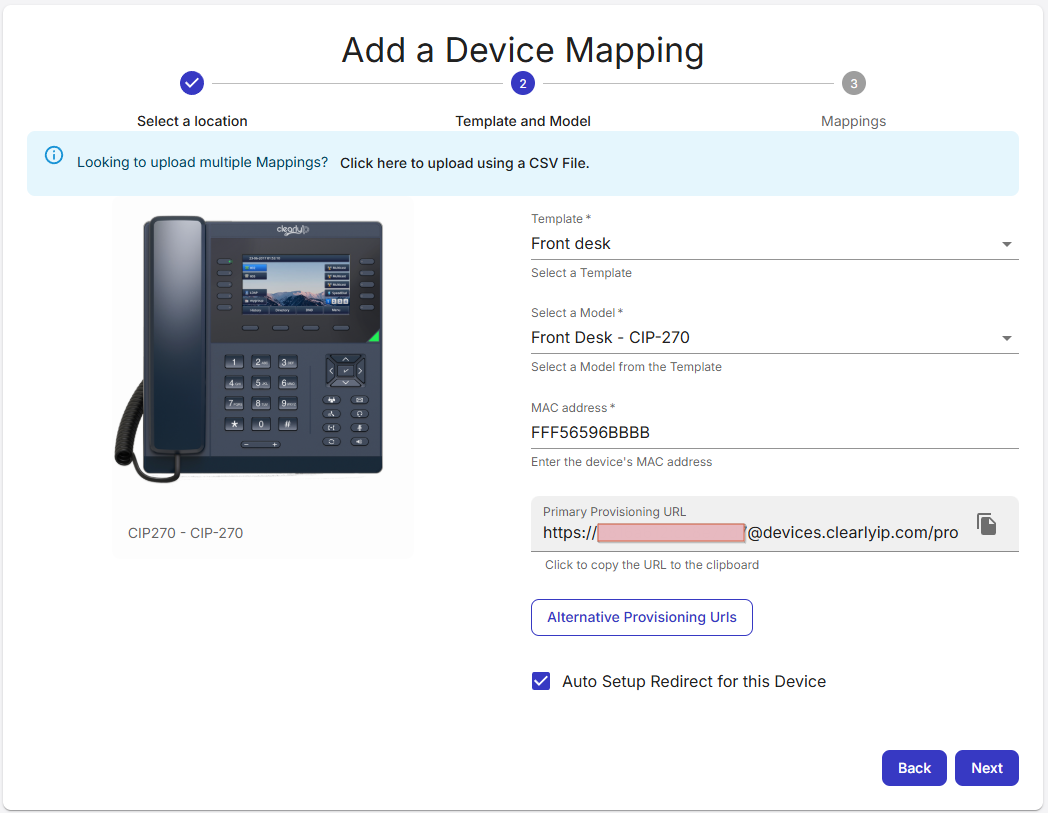
- Once the MAC address is filled, it will show the
Primary Provisionin URL, this is the URL that needs to be copied into your device provisioning address; name and location of this field will vary between phone models and brands. Primary URL uses HTTPs, if your device needs HTTP to get provisioned, you can click the Alternative Provisioning Urls to show the fallback provisioning option.
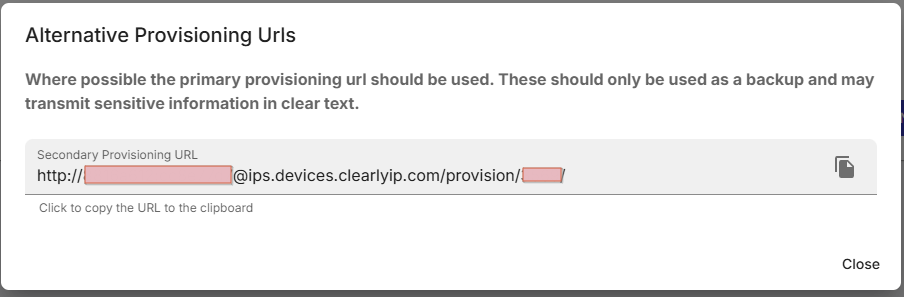
- Click
next to add the extension details, a page like this will appear:
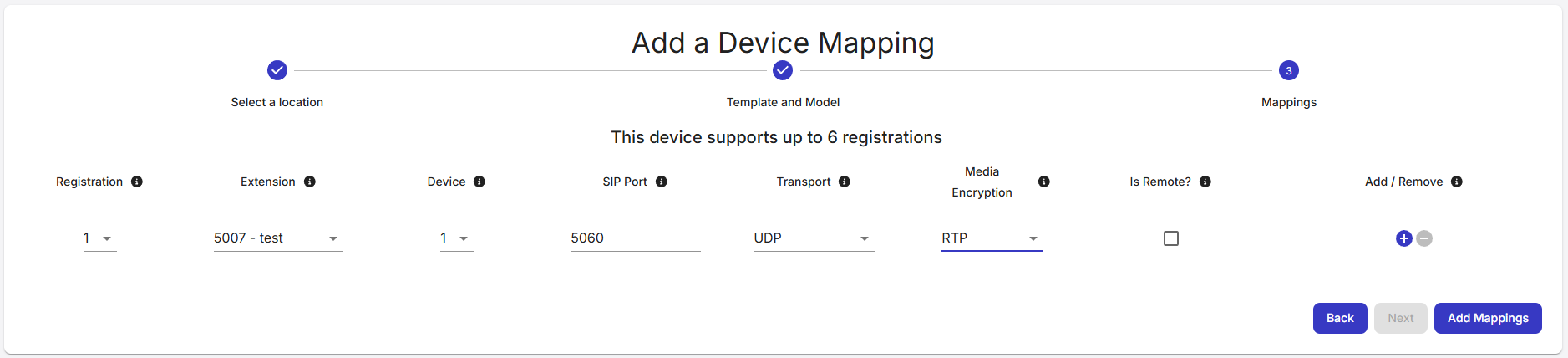
- Fill the mapping details
- Extension: Choose an available extension from the list, if you don't see any extensions listed, the Clearly Device Module needs to be initialized. If issues persist, you will need to regenerate a module key and re-enter it on the module.
- Device: This is usually 1, at least for Fpbx based systems like ComX and P360.
- SIP Port: Enter the SIP port set up for the extension on the phone system. Usually is 5060 for ComXChange but it may be different so make sure to use the proper port to reach the PBX is defined.
- Transport: Usually it is UDP, but this is determined by the configurations on the PBX, make sure to select proper value on this field.
- Is Remote?: If this box is checked, the extension will register using the
Primary remote host address set up on the Location, if not, it will use the Primary local host address set up on the Location as well. - Media encryption: Usually set this to RTP..
- Add / Remove: This button will allow to set various registrations, in case a phone needs to have different extensions on the same physical device. Usually regular users don't need to create more than one extension per device, but if you do, it will add a second row and increase the
Registration value to 2. The registration can translate to the Accounts option on the phone's configuration web interfaces, where several extensions can be set up.
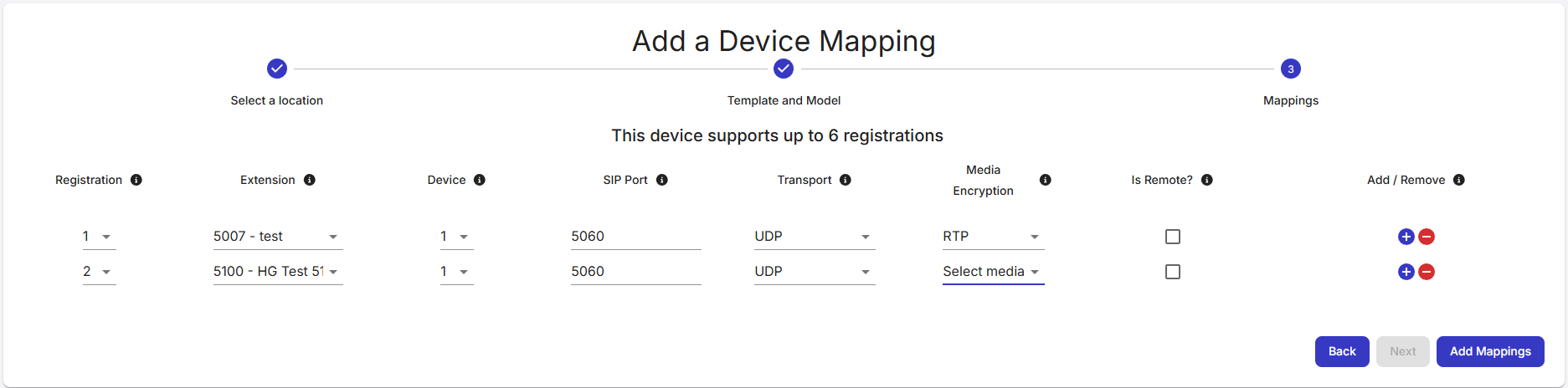
- Click on
Add Mappings button to save this new device information. - A confirmation message will be shown and the page will go back to the list of mapped extensions
This is useful when you require minor changes to a base model where it doesn't make sense to have a whole model for a couple different line keys. This option allows to modify the assigned keys for an specific phone, of the same model, on a specific template. Clicking on the  icon will show the following dialog: icon will show the following dialog: 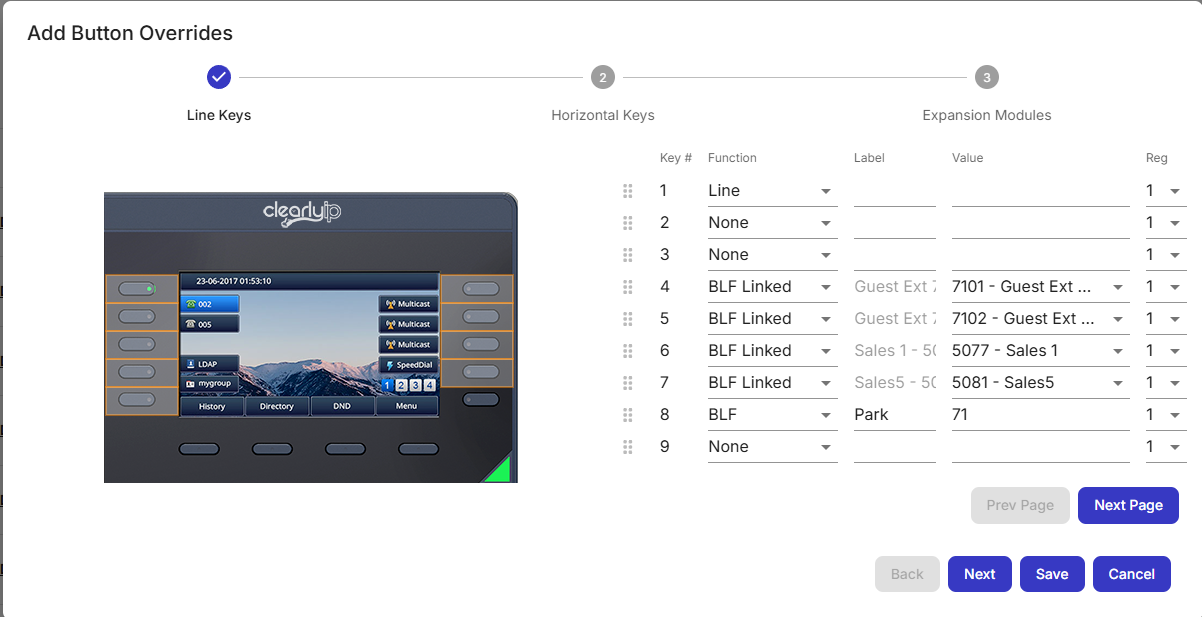
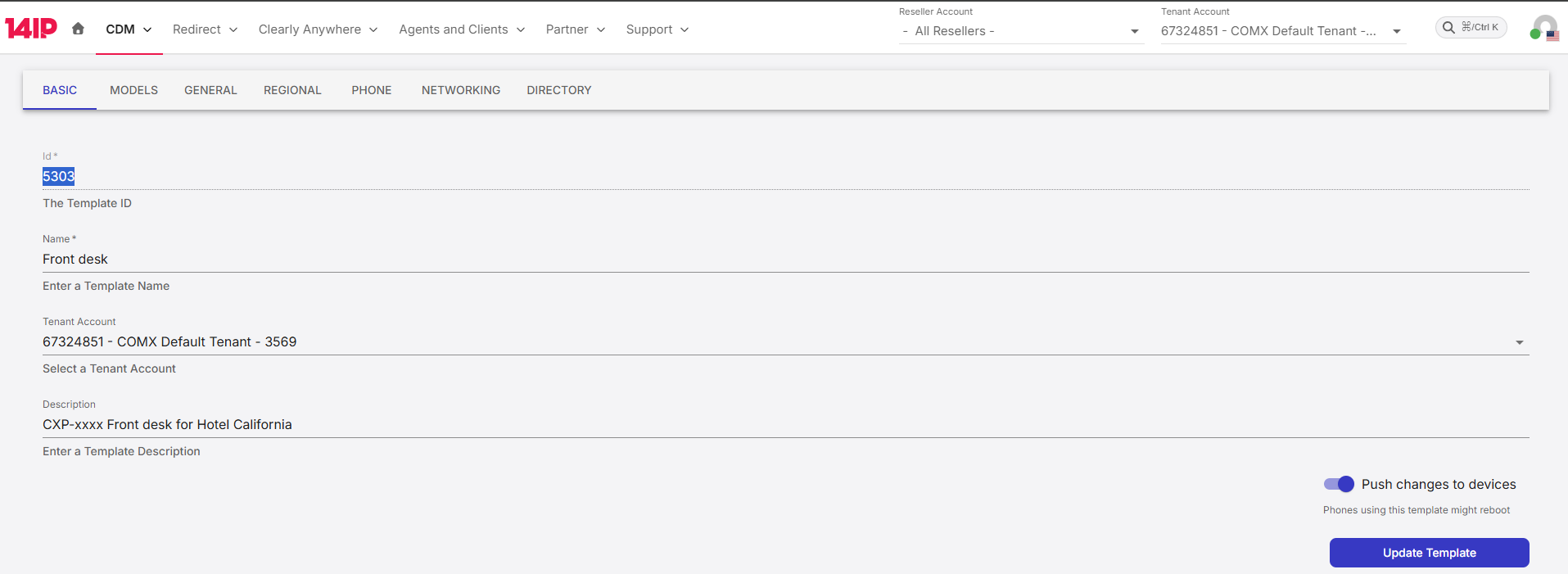
3.3 Mass create mappings via CSV upload The CSV import feature is useful if you come from ComX14 or have some preliminary information on the extensions vs MAC addresses that need to get provisioning. The CSV file can be generated using a spreadsheet program like Excel or LibreOffice. It is highly recommended to get the Template_id and Template_model_id fields from their respective pages before proceeding with next steps. Get the Template_id field - Go to https://devices.clearlyip.com/dashboard/cdm/template and look for the template you wish to use, edit it to reveal all it's details, the value required for the CSV file is on the
id field. In this case is 5303
Get the Template_model_id field 10284 - On the same opened template page in step above, click on the
MODELS tab, the list of all models filtered by Tenant should be shown:
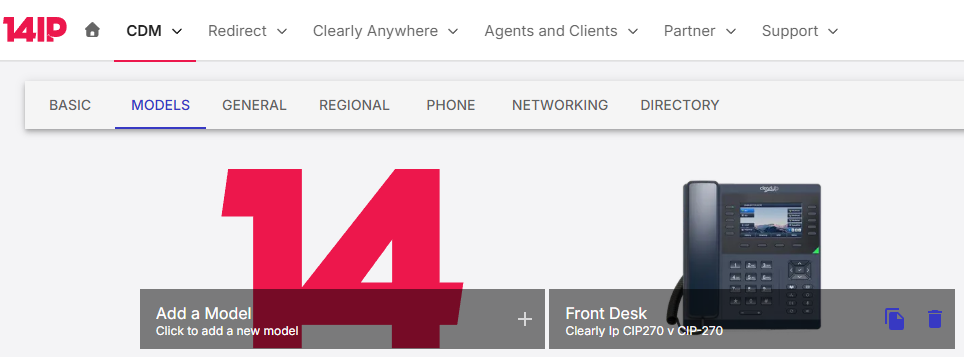
- Click on the model, or models you need to retrieve the
Model Id values, depending on how many devices you need to map on the CSV file, there can be more than one. When creating the mapping file you will use one Template ID, and Template Model Id per line, however each entered phone can belong to a different template and model and be imported in a single CSV file. When clicking on a model, the following page will appear:
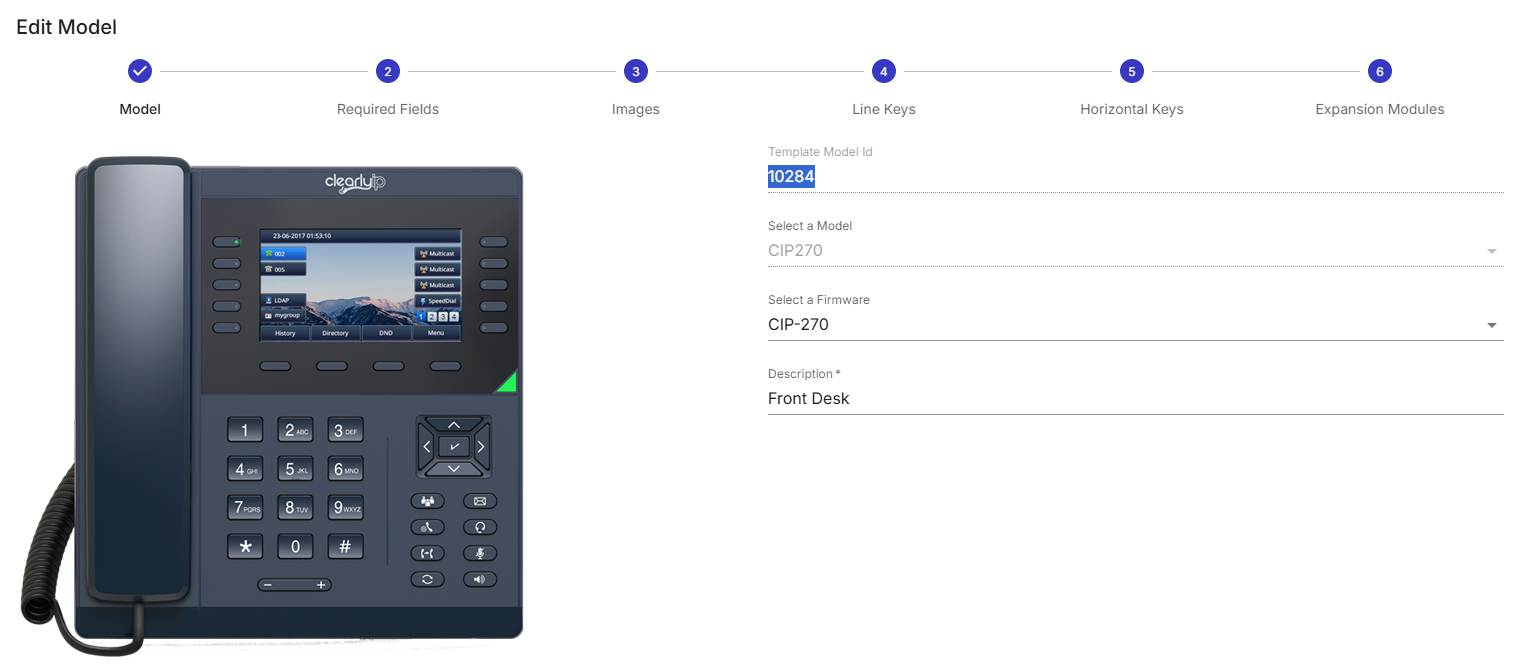
With these parameters you are ready to create the CSV file Importing the CSV file - Similarly to the regular mapping procedure, go to https://devices.clearlyip.com/dashboard/cdm/mapping
- Click on
Add a new mapping button.

- ( 1 ) Select a location section. The following dialog will appear, select the Location, if not already selected, if you don't see your desired location, make sure the proper tenant is selected:

-
( 2 ) Template and Model section. Instead of filling the details below, click the Click her to upload using a CSV file button:
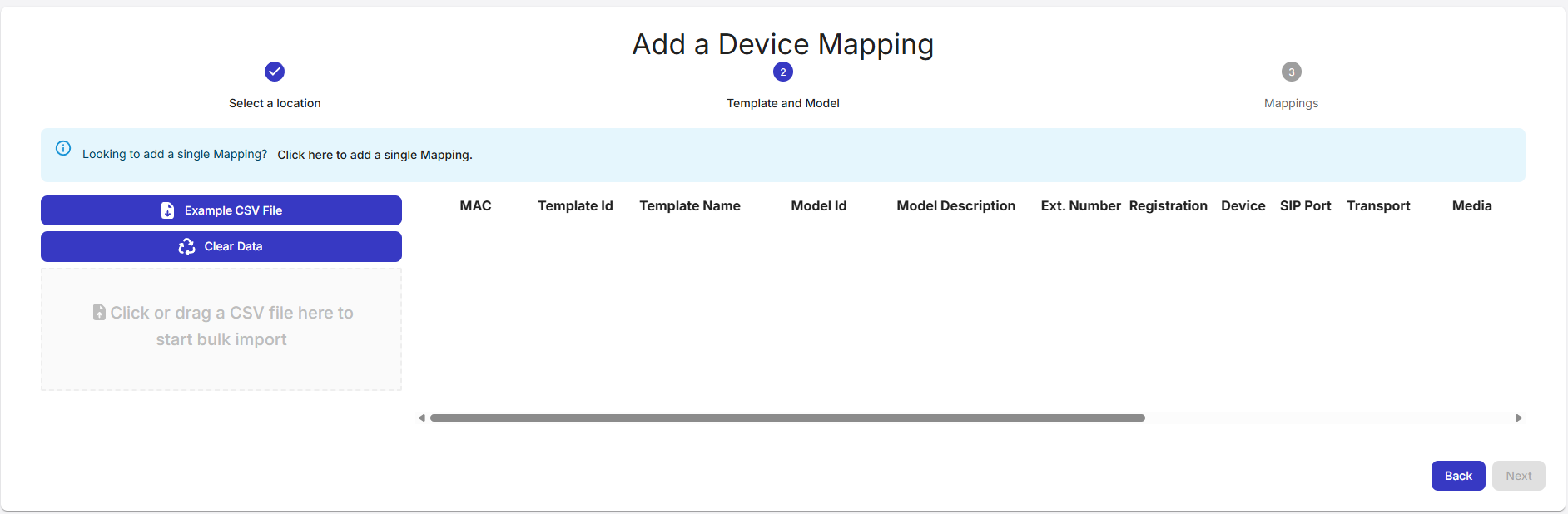
-
This will take you to a page similar to this one:
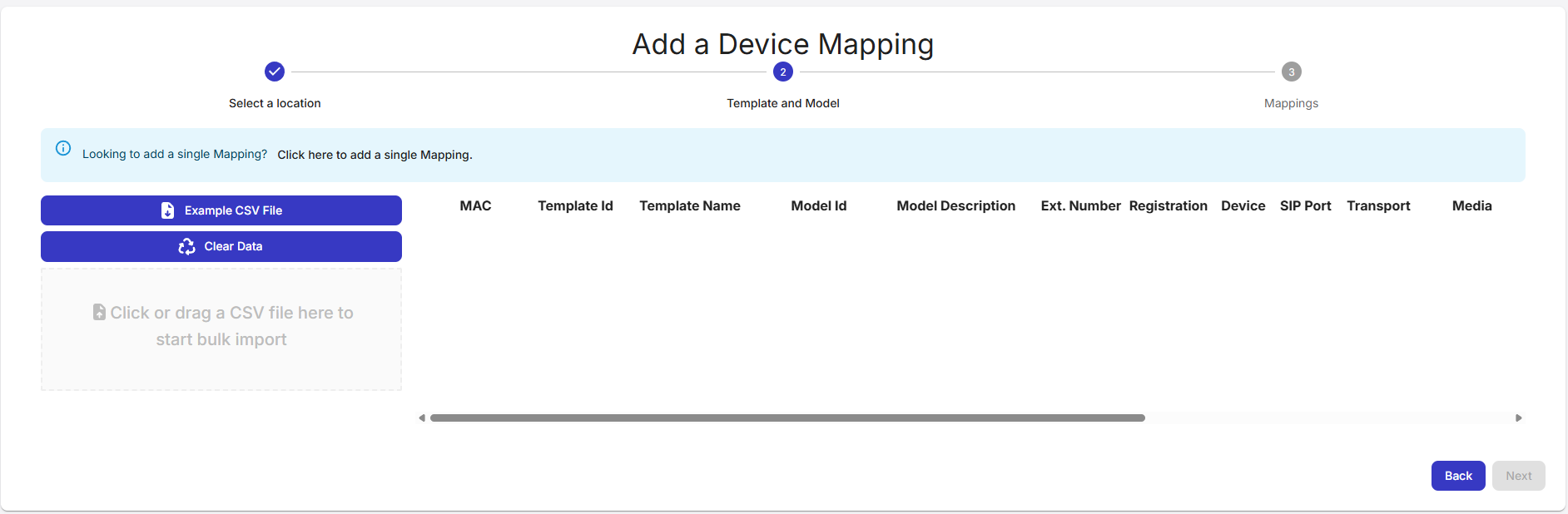
- If you don't have any CSV file created, you can click on
Example CSV file button to download a sample file that can be used as a guide. - Edit the fields as recommended here, take special care into the case sensitivity of fields.

- Once you have your CSV file ready, drag it onto the gray box to start uploading
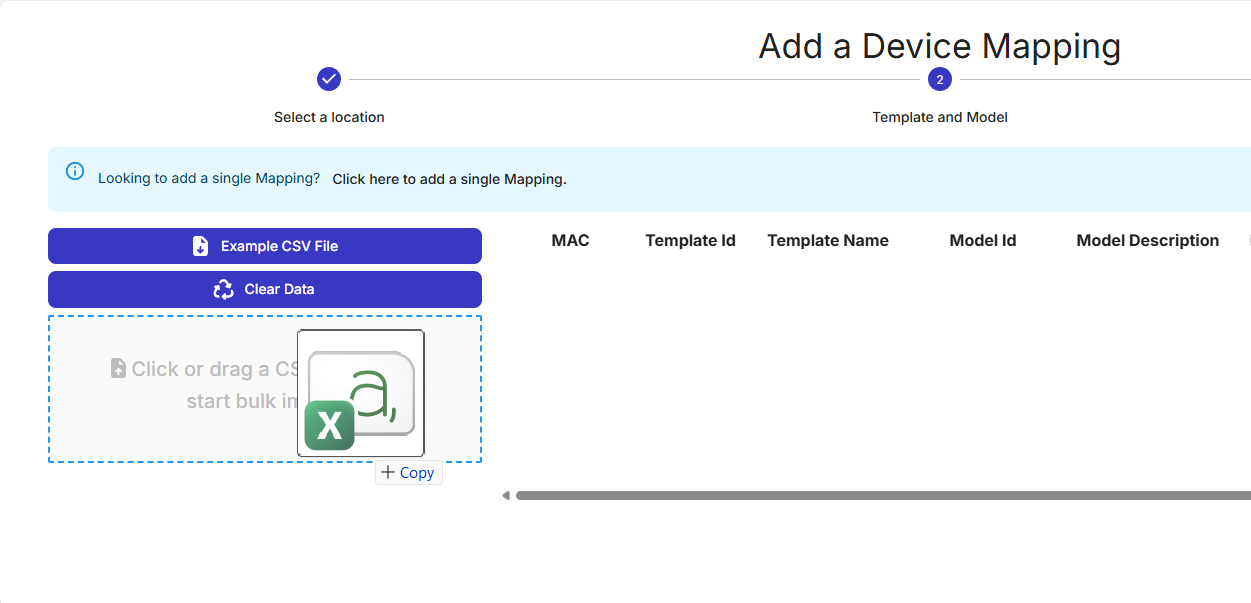
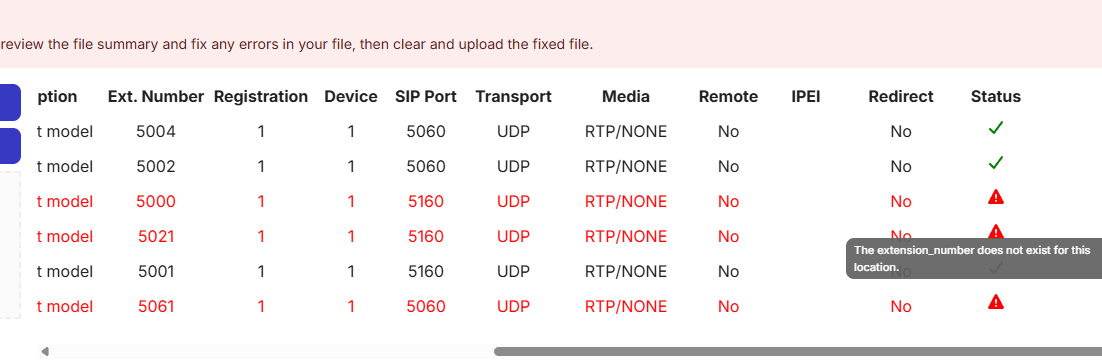
- CDM portal will process the uploaded file, if there are errors, it will highlight the rows in red:
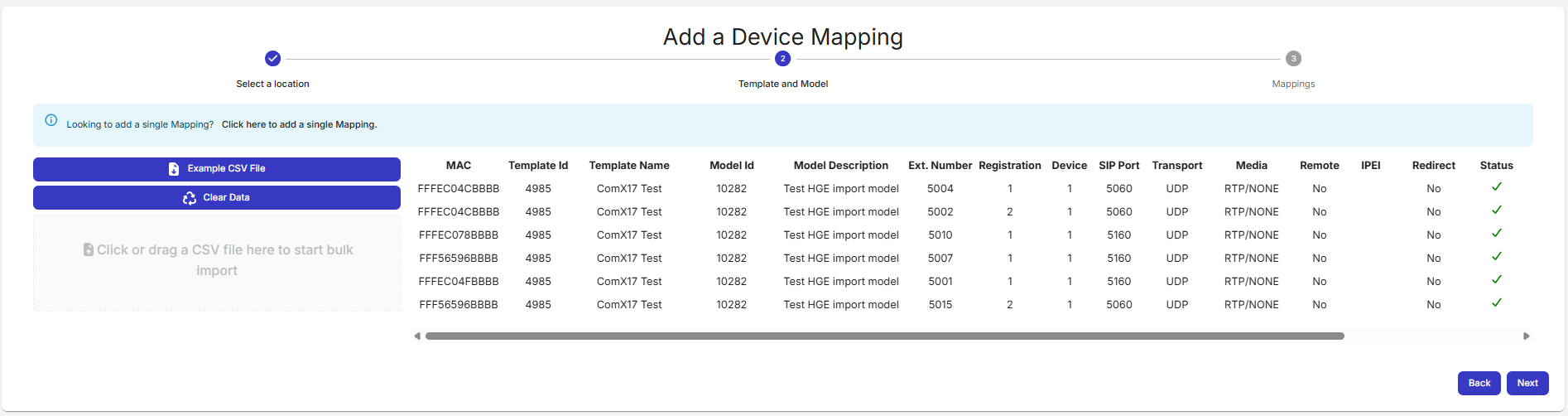
- If no errors were detected, you should see something like this:
- Click
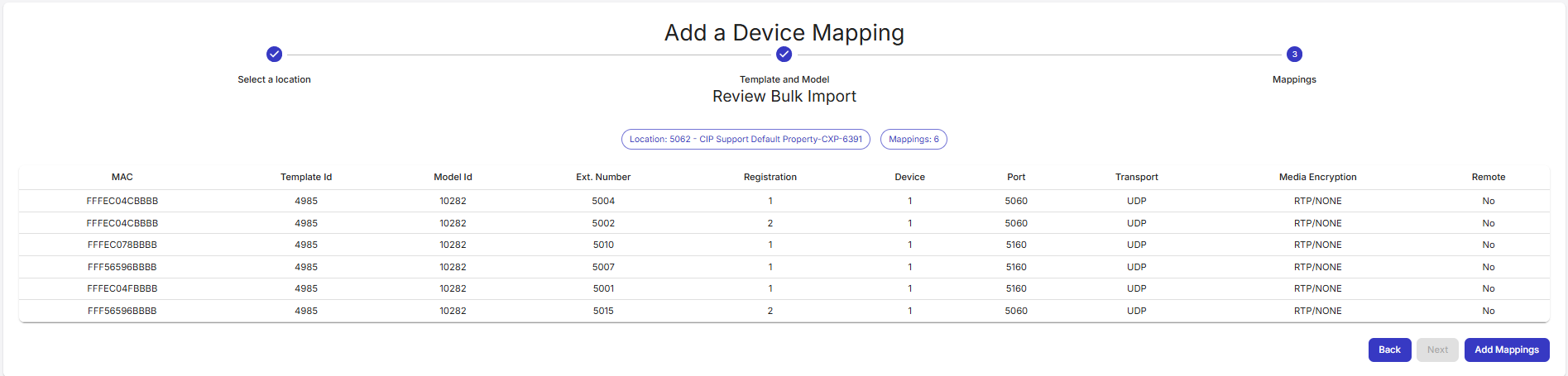
Next. A confirmation page will be shown, if all is satisfactory, click on Add Mappings
- If import was correct, you'll see the list of new devices under https://devices.clearlyip.com/dashboard/cdm/mapping. You can filter by the Model name or template name to view only related mappings.
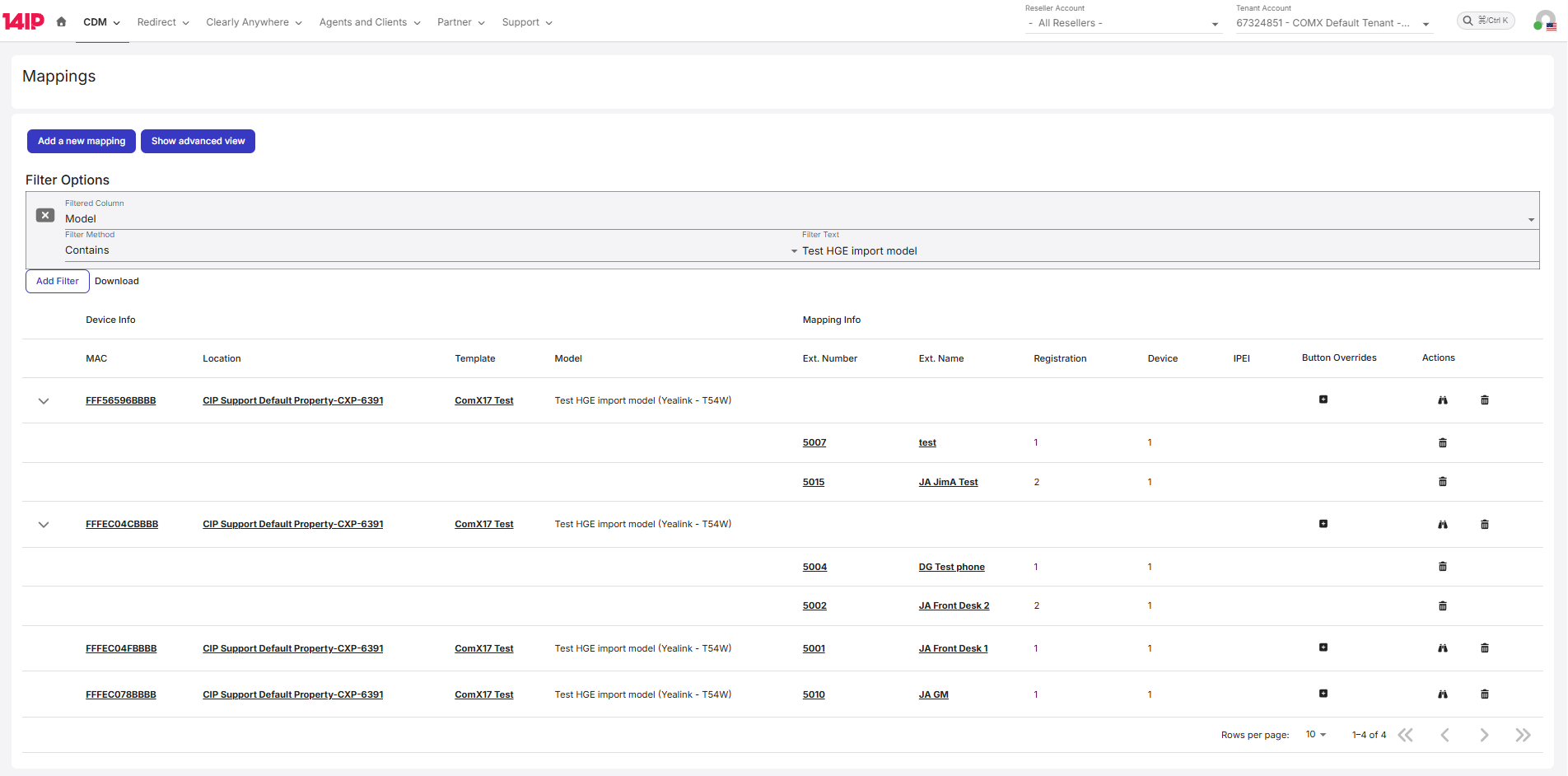
In this case two phones were set up with two registrations in the same device, so registration increased on the second extension. -
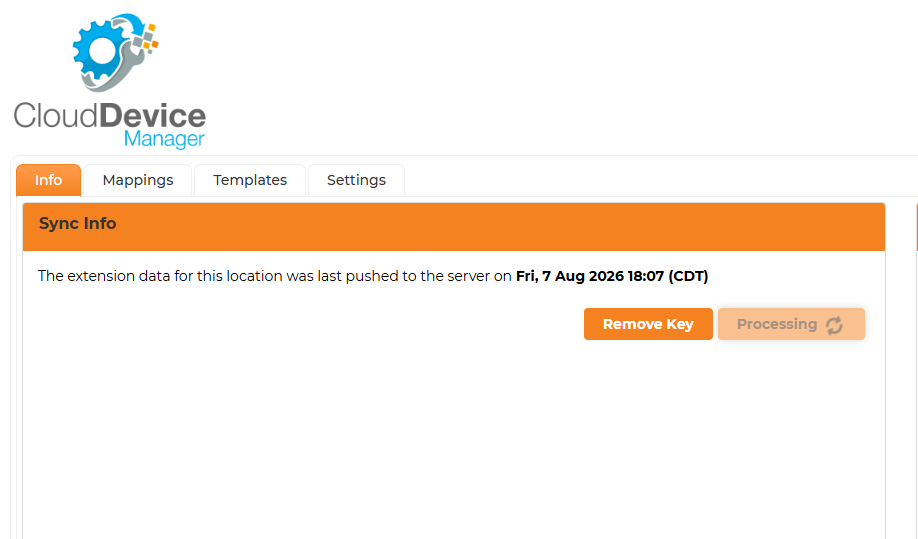
Back in the local ComXchange, click on Sync now to show the newly imported extensions on the premise system.
-
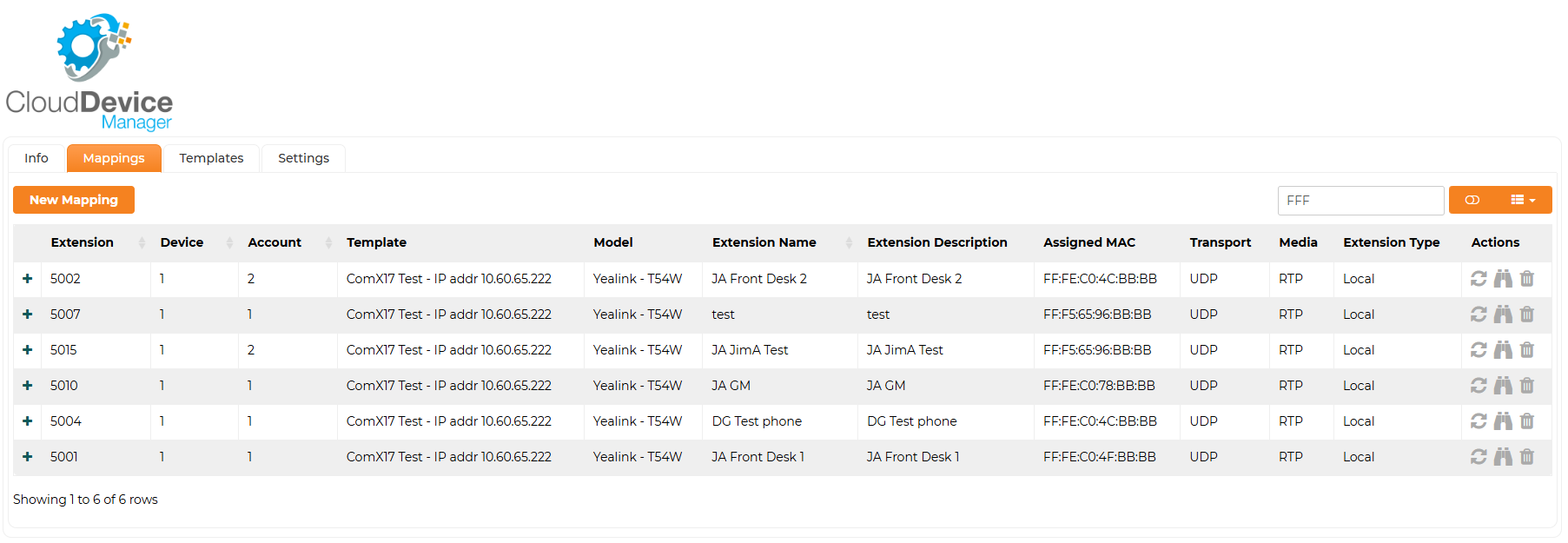
Mappings should now be visible under the Mappings tab
|
|
|
| | | |
|

