As explained in the
Call Data section of the
Xivea AI Voice Assistants guide, each ClearlyIP
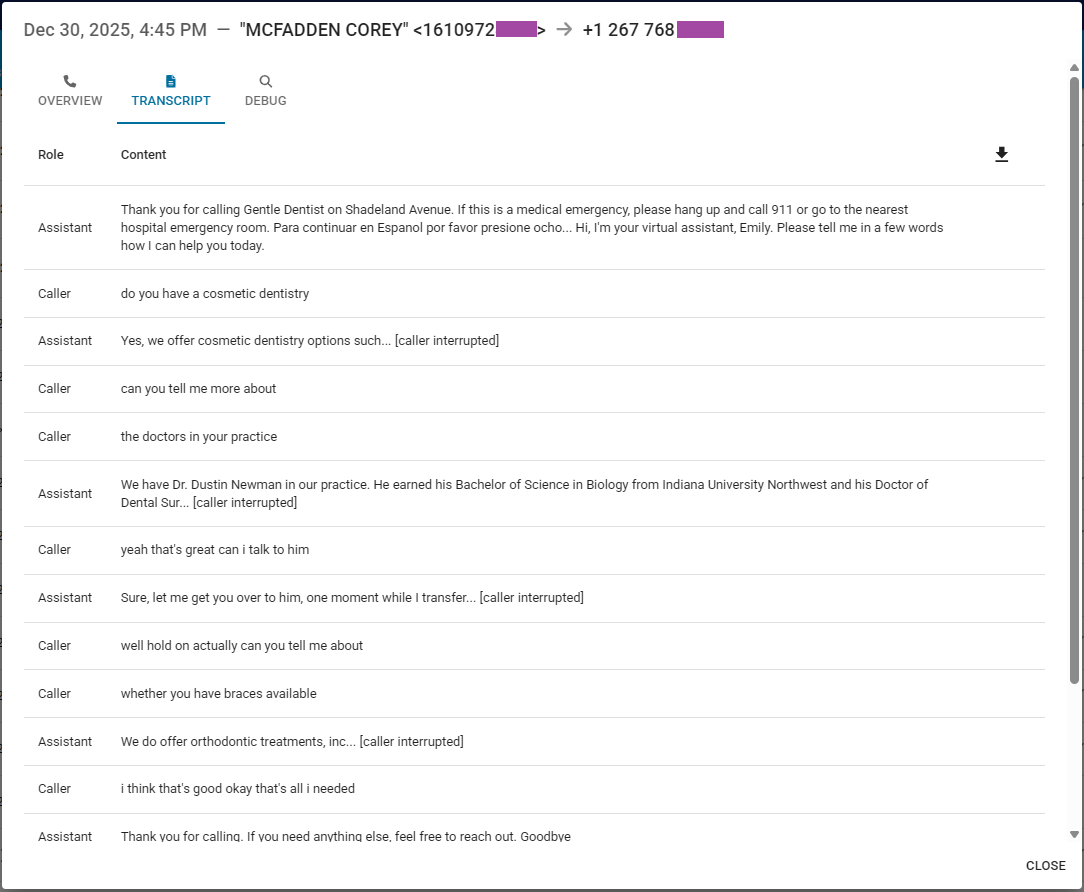
Xivea AI Voice Assistant can, if the owner so desires, store additional data in each individual entry of its CDR records. The additional data that can be stored is: Transcripts, Call Summarization, Call Sentiment Analysis, and the actual audio stream of the call.
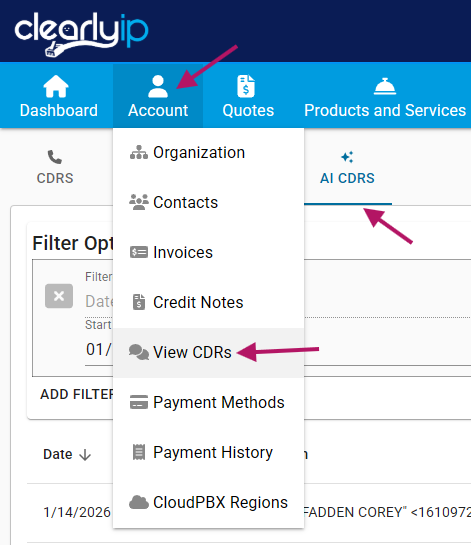
Accessing the Xivea AI CDRs The AI Assistant CDRs are accessed in the Trunking Portal under: Account > View CDRs > AI CDRS
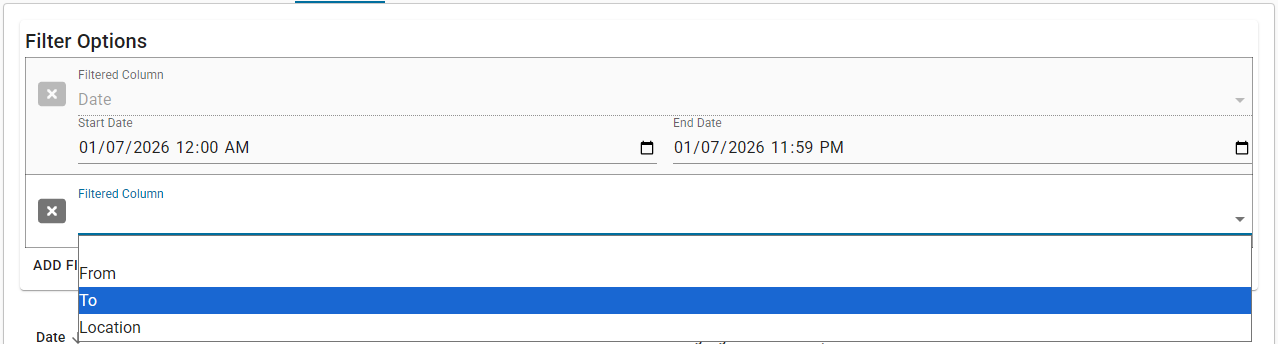
The AI CDRs table will get displayed at the bottom section of that page, being that at the top section you can have one or more filters for convenience.
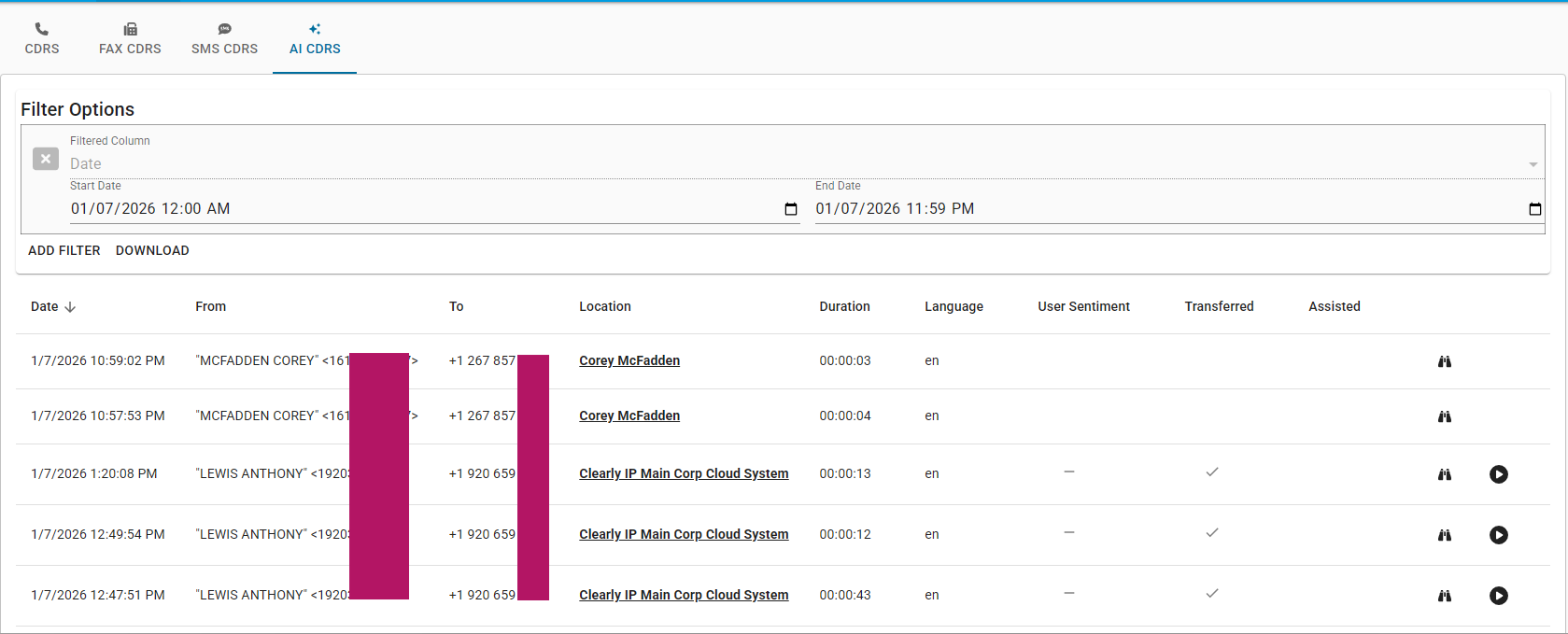
The Date range filter is always applied, other filters available are: From (source phone number), To (destination phone number), and Location (name of the Trunking Location present in the call):
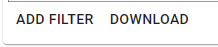
Same as with the CDRs of regular calls, the filtered out CDR data can be downloaded to your computer as a .csv file, for this just click on the DONWLOAD button sitting next to the ADD FILTER button, this is right below Filters, above the actual CDR table:
Additional AI Data available for the Xivea CDRs
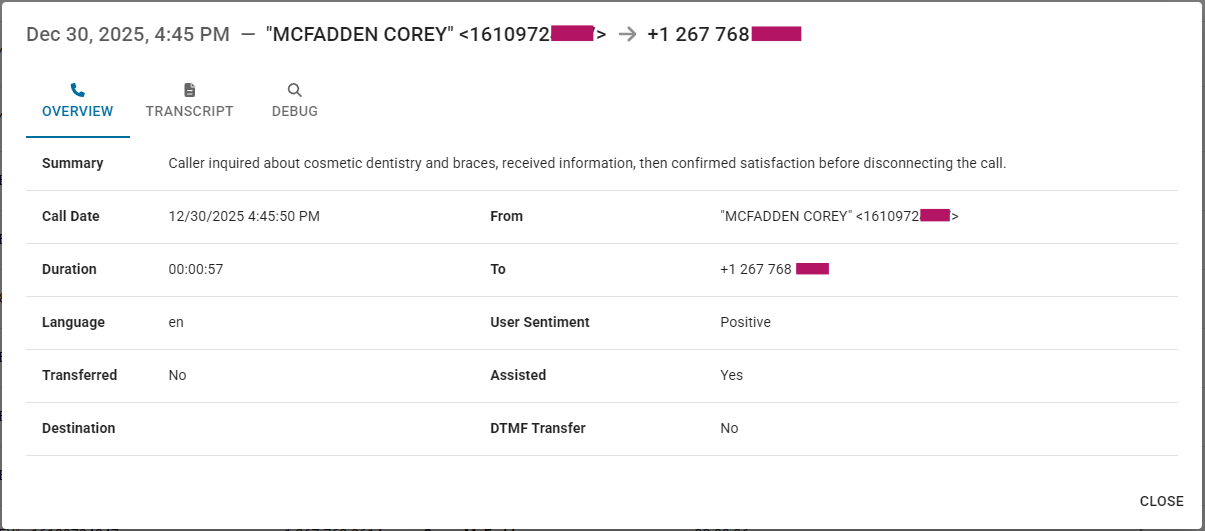
For each AI CDR entry you can access any available additional AI Data (call summary, sentiment analysis, and transcript) by clicking on the
binoculars icon on the right side of the table, under the Actions column. Note here that for these additional data items to exist for a call entry, the AI Assistant that handled the call needed to have the corresponding toggles enabled under the CALL DATA tab of the Assistant creation/edition window, as described in the
Call Data section of the
Xivea AI Voice Assistants guide.
The complete transcript of a call can be downloaded as a .csv file to your computer at any moment, for this just click on the down arrow icon shown at the top right corner of the Transcript window (shown here above).
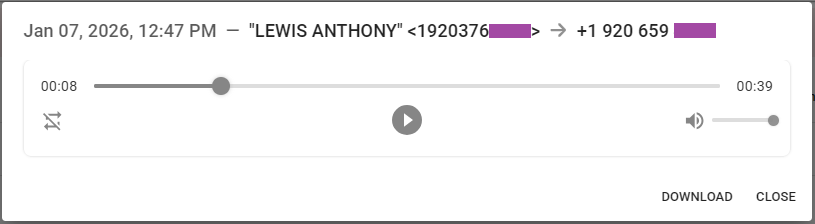
If the audio of the call was recorded (again, for this additional data item to exist for a call entry, the AI Assistant that handled the call needed to have the corresponding toggle, the "Record Calls?" toggle in this case, enabled under the CALL DATA tab of the Assistant creation/edition window, as described in the
Call Data section of the
Xivea AI Voice Assistants guide), you can reproduce back the call by clicking on the
playback icon on the right side of the table, under the Actions column.

 Uploading ....