To upgrade our CIP280V2 and CIP291Plus phones to Android 14, you will need to do a manual flash of the firmware. The reason for this is that Android 14 has major system driver architecture changes, which makes seamless in-place incremental upgrade unavailable. Compared with Android 11, Android 14 delivers significant improvements in both system security and overall stability.
To flash the new firmware, you will need a USB C cable and follow the steps below. Please note, the phone will be factory defaulted after the upgrade. If you have Option 66 or redirect setup, the phone should auto-reprovision.
- Install ADB Driver
- Download and unzip the DriverAssitant_v5.1.1.zip
- Open the extracted folder and double-click the DriverInstall.exe to launch the driver installer program.
- You will see a prompt window as below.
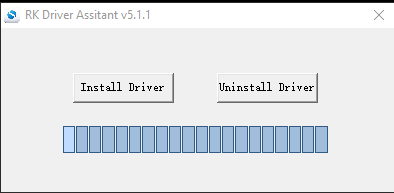
- Press the Uninstall Driver (right) button to remove all old driver first, and then press the Install Driver (left) button to install it.
- If successful, it will show "Install driver ok".
- On the Phone, swipe down from the top and choose the cog icon to go to settings.
- Click on General
- Click on "Version" 7 times to enter developer mode.
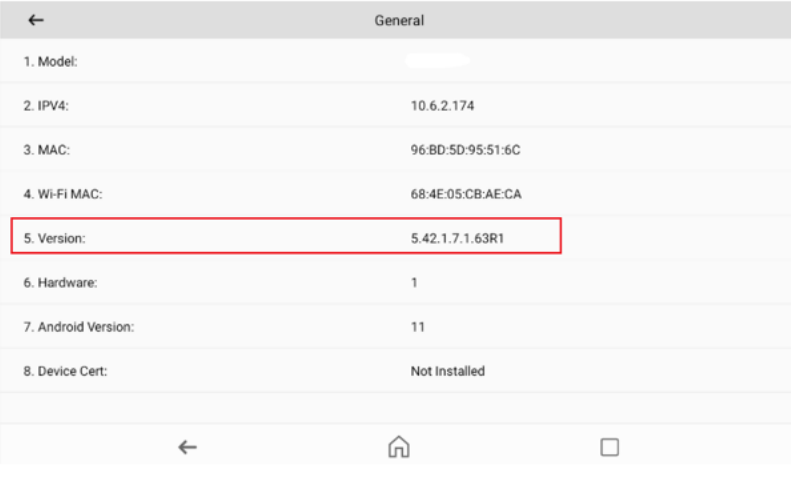
- Hit the back arrow once. Enter your admin password at the bottom of the screen.
- Click on Developer Options (only visible if Admin password was entered)
- Toggle on "USB Debugging" and click OK.
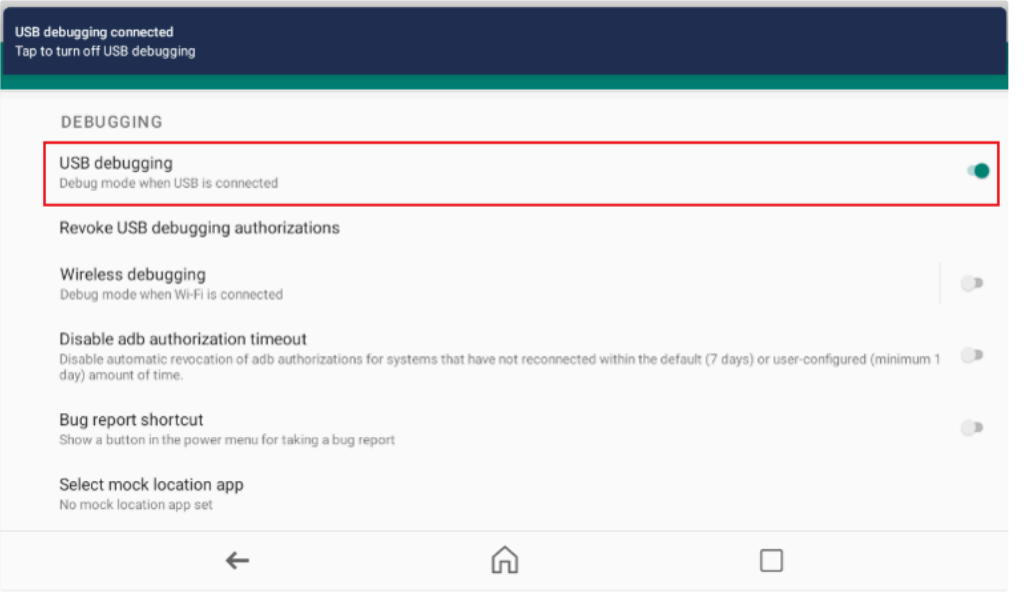
- Connect the Phone to the computer with a USB C cable.
- To verify if you have successfully installed it, go to Device Manager. You should see an Android Device - Android ADB Interface when the phone is connected.
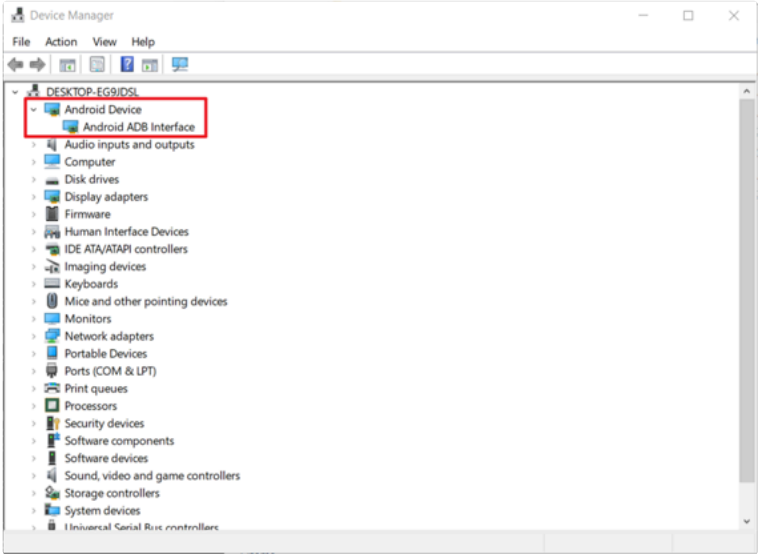
- Download and unzip the firmware for your model (these are both large multi GB files).
- CIP280V2
- CIP291Plus
- Download and unzip the Upgrade_tools.zip
- Open the folder and run the RKDevTool.exe
- You will see the following page.
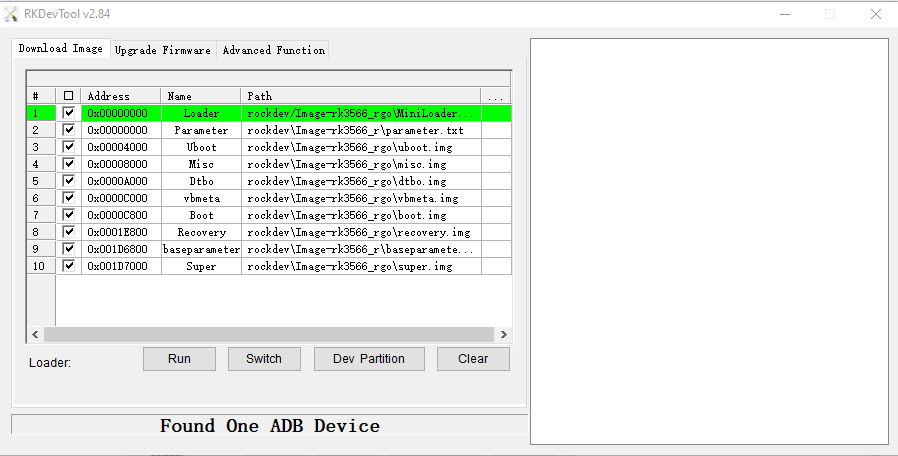
- Note the prompt at the bottom will show Found One ADB Device. If it is No Devices Found, that means the phone has not connected to the PC.
- Click the "Upgrade Firmware" tab to enter the page, then click Switch button.
- If the phone does not have USB debugging permanently enabled, the following prompt will appear when you click "Switch". Please click click "Always allow from this computer" then press "Allow".
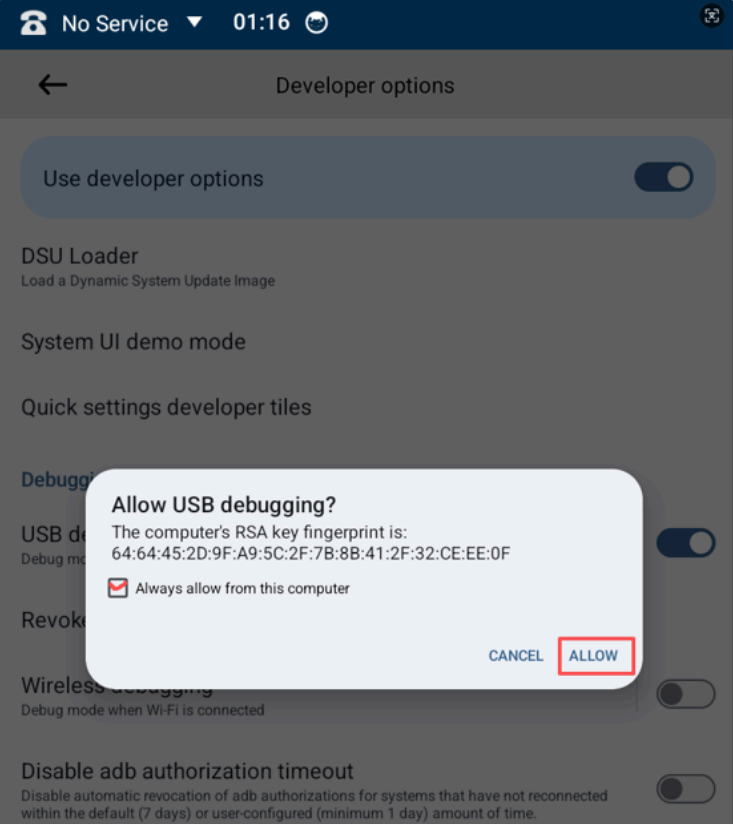
- The tool should displays Found One LOADEDER Device (it may show Found One MASKROM Device)
- Click Firmware button to choose the CORRECT update.img file for your model that was downloaded in step 13.
- After that, click Upgrade button. The phone will download the update.img and reboot to upgrade the image.
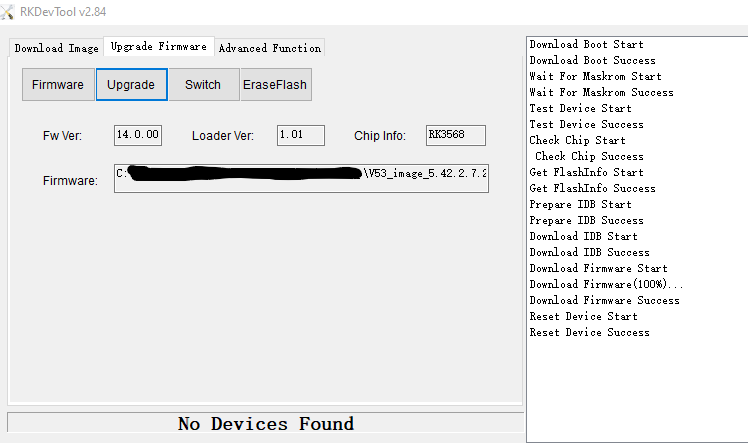
- Once the phone boots back to normal, you can unplug the USB C and close the applications.
Note: CIP290V2 does not have an upgrade to Android 14.

 Uploading ....