ComXchange Failover Design Information
- ComXchange Failover Module Configures the ComXchange Systems in a Primary/Secondary Configuration with the ability to configure options that are replicated from one system to the other
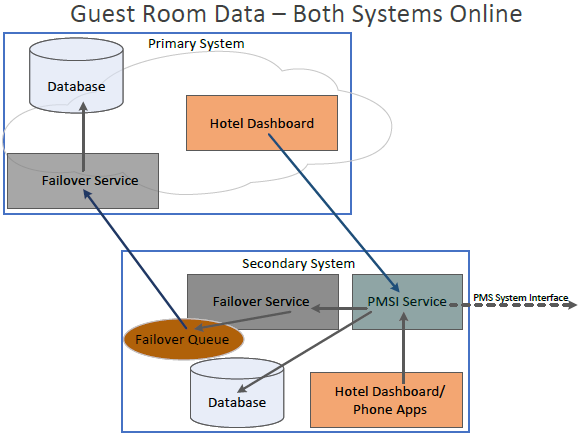
- Designed to keep call continuity for guests and staff as well as most hospitality features available in the event of a down system or network disruption
- Configuration will take place principally on the Primary (cloud) server with some hospitality functionality and configuration assigned to the Secondary server
- Configuration is done on the Primary System’s web GUI with a few exceptions such as using an onsite failover Trunk. The trunk, and Inbound routes will need to be Configured on the Secondary System
- Configure Admin -> SIP Settings on the Primary System as well as the Secondary System if necessary
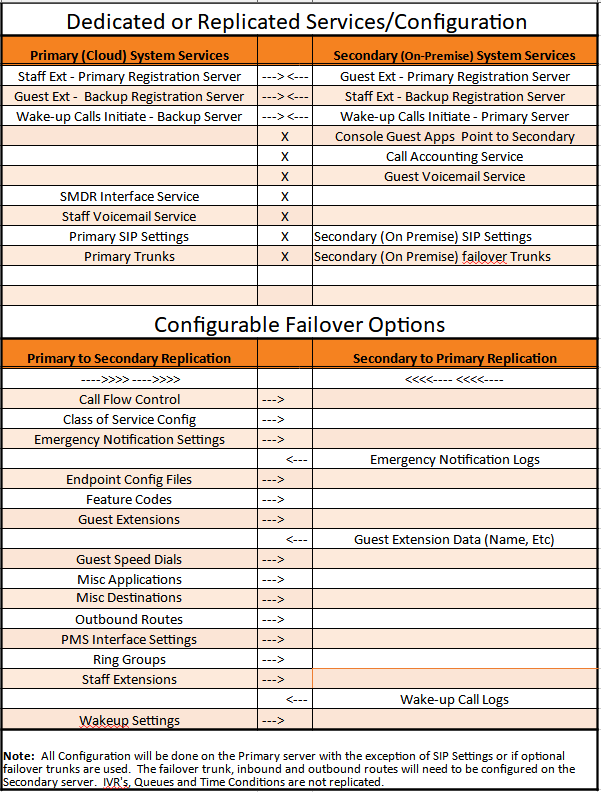
- Staff Extensions will use the Primary System as the primary SIP server and the Secondary System as the secondary/backup SIP server
- Guest extensions will use the Secondary System as the primary SIP server and the Primary System as the secondary/backup SIP server
- The PMS interfaces are connected to the Secondary System
- The IP phone console applications connect to the Secondary System
- Customer/Hotel Staff access to the User Control Panel/Hotel Dashboard/Call Accounting uses the Primary System
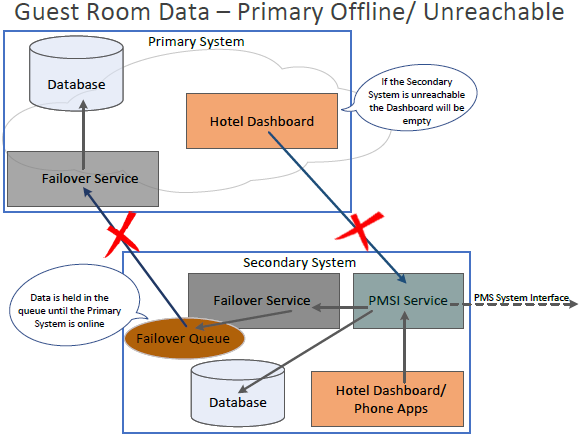
- The Primary System will attempt to perform wake-up calls if the Secondary System is down. However, new wake-up calls cannot be set while the guest system is down.
- If the Secondary System is out of order for a prolonged period, it is recommended to disable failover on the Primary System, so all the guest functionality is available on the Primary System
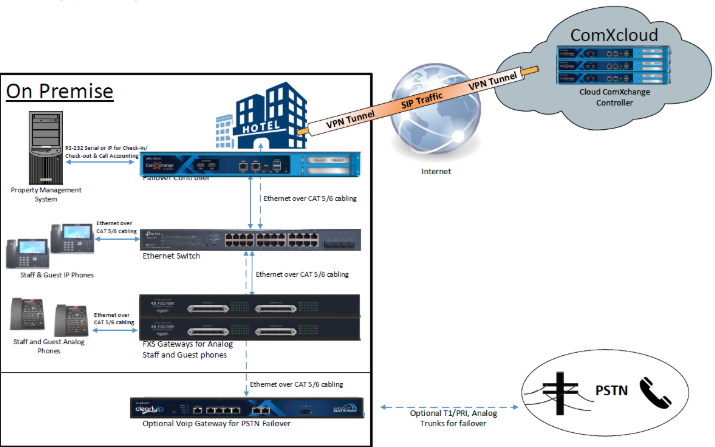
Below is a chart of the services noting if they are dedicated services to one system or replicated from one system to the other and which system is the primary server for the service
![]()
Failover Data Flow Chart
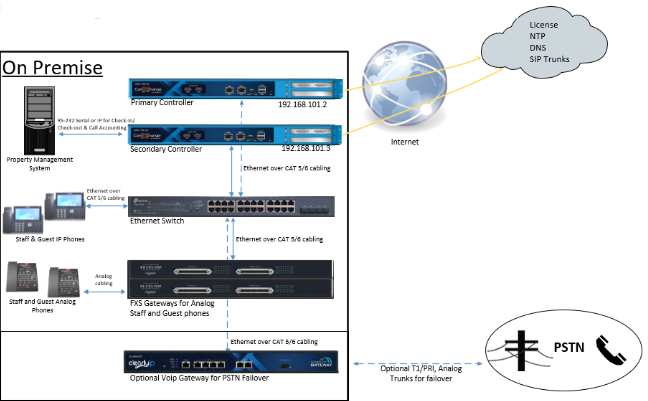
Cloud to Premise Hybrid Architecture
Premise to Premise Architecture
Setting Up ComXchange Failover
Settings for the Configuration are separated between the Primary and Secondary Server. If you are setting up a Hybrid system the cloud system will be configured as the Primary server and this will use a vpn tunnel for interconnectivity between the two servers. There is a typical OpenVPN configuration setup that can be requested when setting up a hybrid system.
Primary Server Configuration
1. Failover Module Settings
Navigate to Admin > System Settings - ComXchange Failover
Mode: Primary
Local host: should be set to the servers Lan IP address if setting up an on premise failover or the VPN address of 10.10.10.1 in a typical vpn setup for a hybrid setup
Remote host: Set to the LAN IP Address of the secondary server. In a hybrid setup this is typically an IP address of 10.20.20.2. In a premise failover setup this is usually 192.168.101.3
Secret: Can be anything, this is the password used to set up a peer trunk between the two servers.
2. MySQL Permissions
A mysql user that can access and write to the database from the Secondary server will need to be added to the mysql users. The "indentified by" can match the secret set in the ComXchange failover module or another of your choosing. You will need to run the following commands:
mysql
GRANT ALL ON *.* TO comxfailover@'<Secondary IP Address>' IDENTIFIED BY 'Failover Secret>';
Example for a hybrid setup:
mysql
GRANT ALL ON *.* TO comxfailover@'10.20.20.2' IDENTIFIED BY 'BrnComYYrtru27s6saUSa';
exit
3. Firewall rules
Firewall rules will need to be added to allow communication for the failover service between the two servers. For a hybrid system the defaults rules may exist that allow 10.20.20.2 to reach ports 3306, 3081, 65000, and 3030. If you are setting up a premise to premise server you will need to replace the 10.20.20.2 with the IP address of your Secondary server.
Example rules for a hybrid setup:
-A INPUT -i eth0 -p tcp -s 10.20.20.2 --dport 3306 -j ACCEPT
-A INPUT -i eth0 -p tcp -s 10.20.20.2 --dport 3081 -j ACCEPT
-A INPUT -i eth0 -p tcp -s 10.20.20.2 --dport 65000 -j ACCEPT
-A INPUT -i eth0 -p tcp -s 10.20.20.2 --dport 3030 -j ACCEPT
4. SMDR Settings
Point the SMDR interface to the Secondary IP, such as 10.20.20.2 or 192.168.254.20
Navigate to Guest Management > Interfaces - SMDR interface and set the remote IP to the Secondary server
Secondary Server Configuration
1. Failover Module Settings
Navigate to Admin > System Settings - ComXchange Failover
Mode: Secondary
Local host: should be set to the servers Lan IP address. In a typical premise failover setup the local IP may be 192.168.101.3. In a hybrid setup this is typically an IP address of 10.20.20.2
Remote host: should be set to the LAN IP Address of the Primary server. In a typical premise failover setup the local IP may be 192.168.101.2. In a hybrid setup it is typically 10.10.10.1
Secret: Can be anything, this is the password used to set up a peer trunk between the two servers.
2. MySQL Permissions
A mysql user that can access and write to the database from the Primary server will need to be added to the mysql users. The "indentified by" can match the secret set in the ComXchange failover module or another of your choosing. You will need to run the following commands:
mysql
GRANT ALL ON *.* TO comxfailover@'<Secondary IP Address>' IDENTIFIED BY 'Failover Secret>';
Example for a hybrid setup:
mysql
GRANT ALL ON *.* TO comxfailover@'10.10.10.1' IDENTIFIED BY 'BrnComYYrtru27s6saUSa';
exit
3. Firewall rules
Firewall rules will need to be added to allow communication for the failover service between the two servers. For a hybrid system the defaults rules may exist that allow 10.20.20.2 to reach ports 3306, 3081, 65000, and 3030. If you are setting up a premise to premise server you will need to replace the 10.10.10.1 with the IP address of your Primary server.
Example rules for a hybrid setup:
-A INPUT -i eth0 -p tcp -s 10.10.10.1 --dport 3306 -j ACCEPT
-A INPUT -i eth0 -p tcp -s 10.10.10.1 --dport 3081 -j ACCEPT
-A INPUT -i eth0 -p tcp -s 10.10.10.1 --dport 65000 -j ACCEPT
-A INPUT -i eth0 -p tcp -s 10.10.10.1 --dport 3030 -j ACCEPT
4. SMDR Settings
Disable the SMDR interface on the secondary server
Navigate to Guest Management > Interfaces - SMDR interface and set the enabled setting to No
Other Settings:
- In the ComXchange Failover Module Settings you can choose the items to be replicated between the servers
- Gateways for Analog phones should be configured with a primary and secondary server (VOIP Trunk) which is discussed in this article https://kb.clearlyip.com/comxchange/Endpoint---Configuration---Phones---and---Gateways.html#Gateway_Provisioning_-_Analog_Guest_and_Staff_Phones
- IP phones should be setup with a Primary and a secondary registration server. For the CIP IP phones this can be setup in the Template layout on the Clearly Devices Module
ComXchange Failover Troubleshooting
The Failover Module must have some specific things set up to work correctly. The firewall must allow Mysql port connectivity between the two systems. The local and remote IP addresses and a matching password must be setup to for the "failover" peer trunk to be created correctly, and there needs to be a ComXfailover Mysql User that allows the database to communicate between the servers.
Module setup of IP's and trunk secret
Choose the mode, the Cloud server is usually Primary mode and the Premise server is set to Secondary mode. Verify the IP addresses are correct and the Secrets Match. After these are set the comxfailoverconnecter trunk should appear under peers with a status of OK.
Failover Status is Offline
Usually this is a connection issue between the two systems either the network/VPN is down or the firewall is not allowing the mysql ports to connect.
If you are able to reach the Secondary server from the primary over the VPN you will want to check the firewall to be sure the ports are allowed in from the other servers IP address.
Data Replication Issues
If the failover service status is online but the data is not being replicated from the Primary to the Secondary server there may be an issue with the comxfailover mysql user. On each server there should be a mysql user named comxfailover with the same password allowed from the other server's IP address. You can verify if the user is there by running the following commands. This should show the comxfailover user and an encrypted password. The password will look identical on the two servers
mysql mysql
select * from user;

 Uploading ....