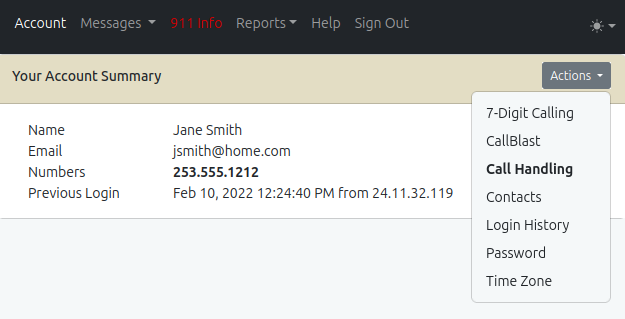
Single User / Residential:
1. Log into the VoIP Control Panel (VCP)
2. In the Actions dropdown on the right, select Call Handling![]()
3. In the Call Handling section, enter a number in "Forward failover calls to"
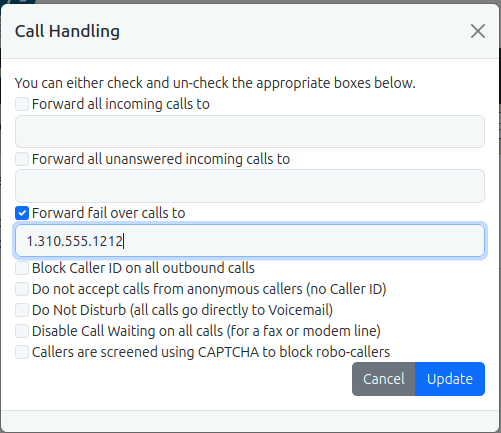
4. Check the box to enable forwarding
5. Click Update
___________________________________________
PBX Users: Call Forwarding
1. Log into the VoIP Control Panel (VCP)2. Go to Domain → User Accounts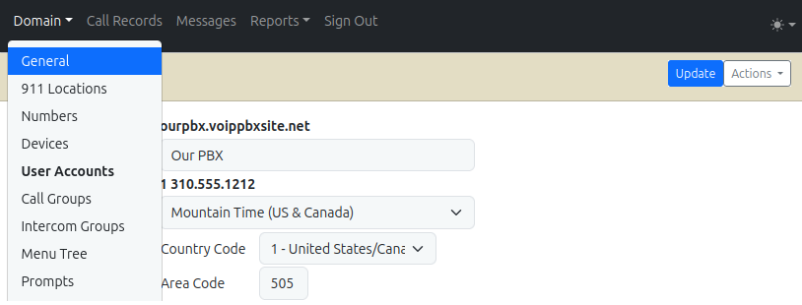
3. Locate the user and click “Switch to User Account” (impersonate)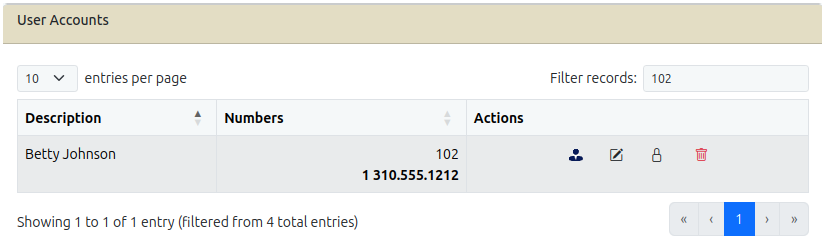
4. In Actions, select Call Handling
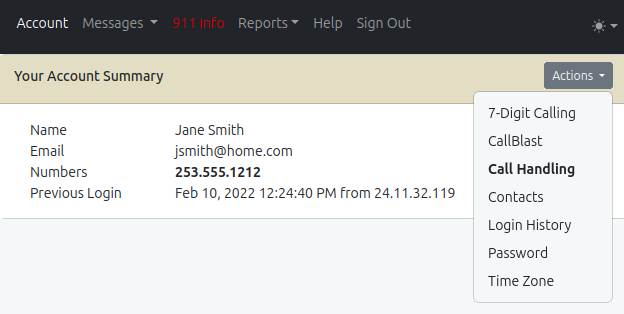
5. Enter a number in "Forward failover calls to"
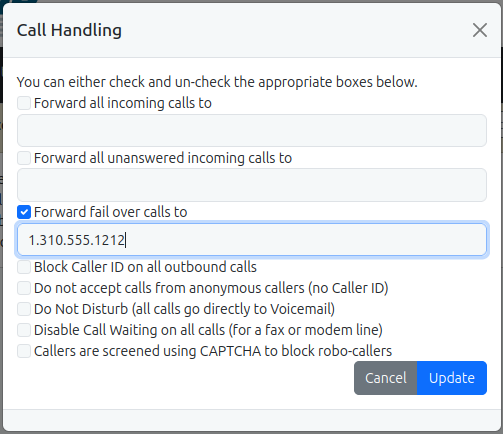
6. Check the box and click Update
7. Repeat for additional users as needed
Note: You may already have your cell phone number set up in CallBlast. Review your settings to confirm it is active. If it is, you do not need to configure the failover settings.
__________________________________________
Trunking / Device Lines:
1. Log into the VoIP Control Panel (VCP)
2. Go to Domain → Trunk Groups
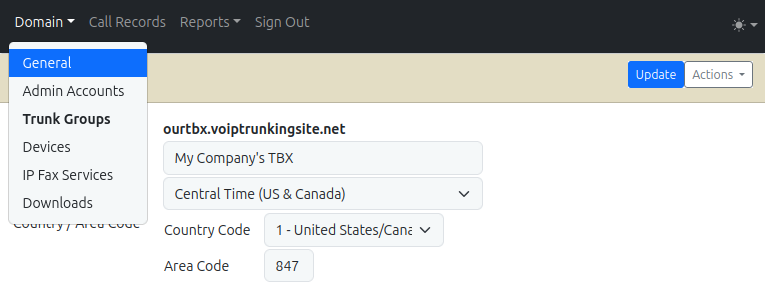
3. Edit the trunk group
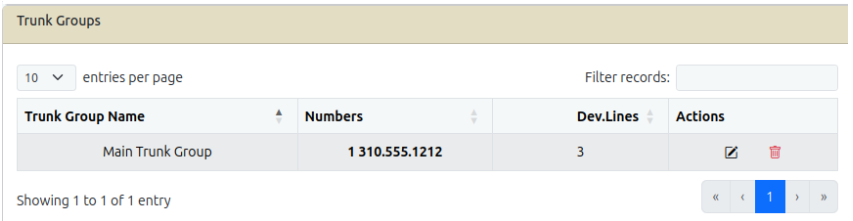
4. In Call Handling, enter a number in "Forward failover calls to"
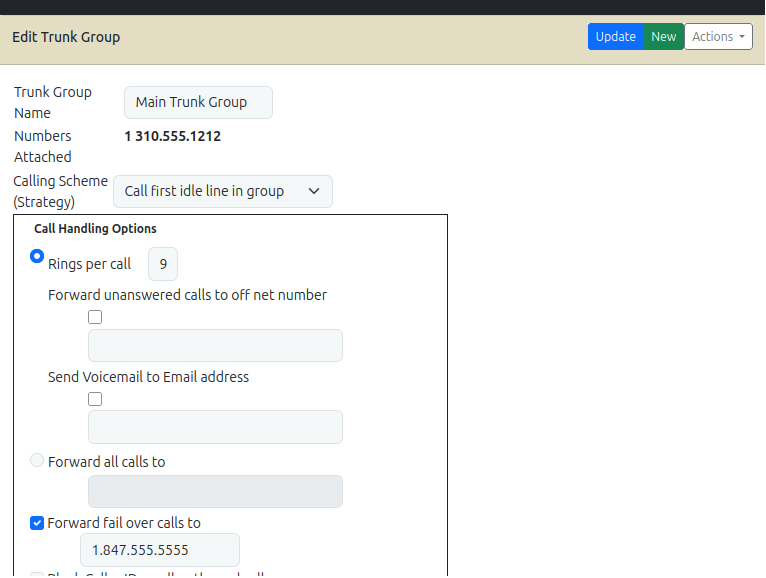
5. Check the box and click Update
Note: If CallBlast is already configured with a mobile number, forwarding may already be active.

 Uploading ....