OverviewThe base Zuul Advanced Auth module allows admins to configure a Totp (time based one time password) to enable MFA for Userman users.
Installation
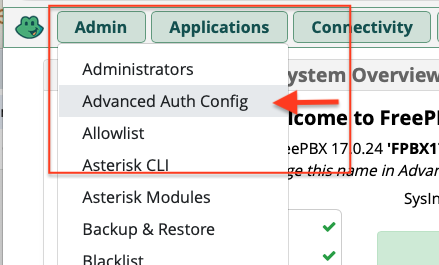
Install and enable the module , then under your admin menu, find the 'Advanced Auth Config' menu item.
Setup
General
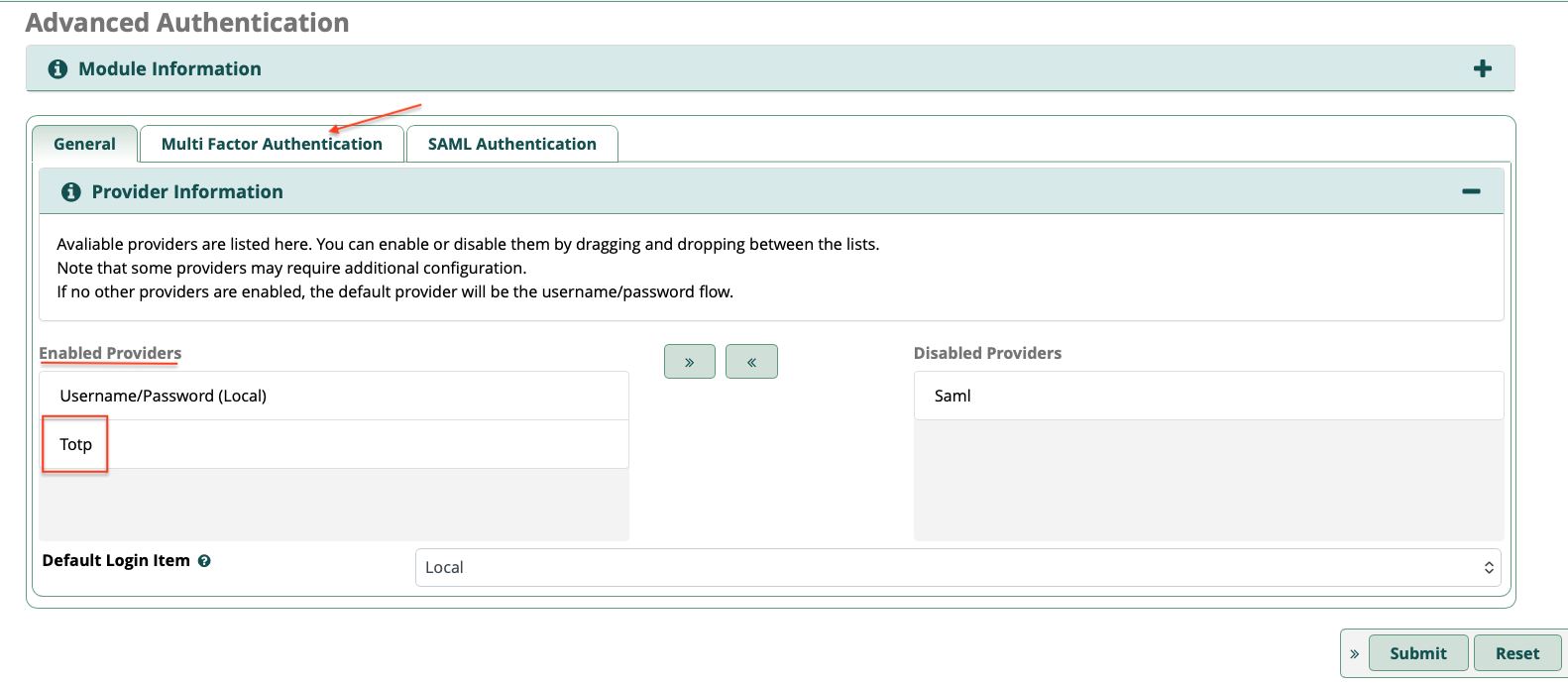
On this tab you enable the authentication providers; enabled providers are listed on the left, while disabled providers are on the right.
Note - if no other methods are enabled Local will be the default and will not allow you to move it to a disabled provider. Additionally, SAML will only appear if you have added the SAML module extension, otherwise you will only see Local and Totp as available providers.
** NOTE - if you disable Username/Password (Local), users defined in the legacy Adminstrators menu will not be able to login to the system; However, fwconsole unlock from the system console will still function to allow access to the admin UI without specifying a Userman user.
Move Totp to enabled providers and hit submit.
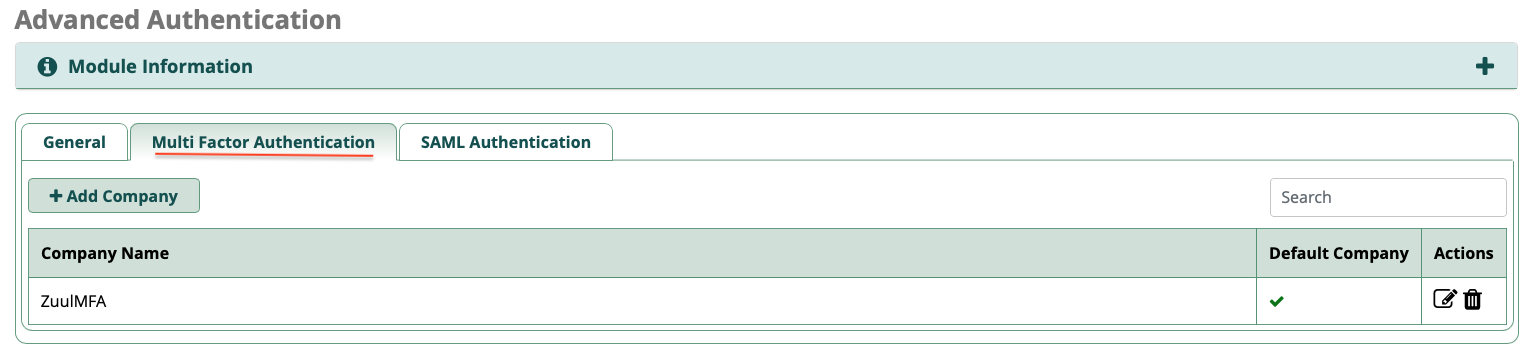
Once doing so you will see a new tab for Multi Factor Authentication.
Multi Factor Authentication
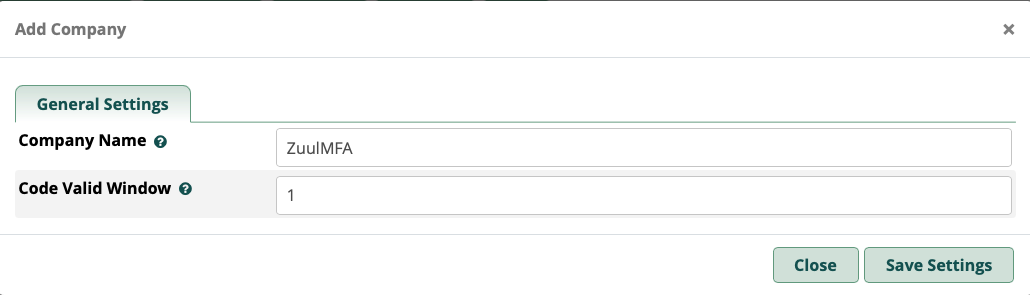
Click on the Multi Factor Authentication tab and click Add Company
A Company is used to associate a user or group within Userman to an MFA policy. The only options are the company name which is arbitrary and the window during which the Totp code is valid - 1 minute before and after current time in my example below.
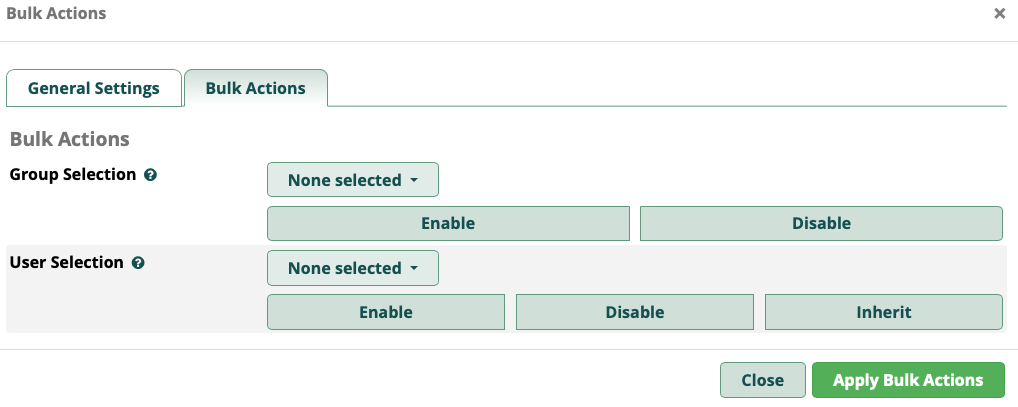
Once you have added the company you can click the edit icon from the grid which will expose the Bulk Actions tab which allows you to apply the MFA policy to a specific Userman group or individual user.
For this example we will be assigning the policy directly to an individual user within Userman.
Userman
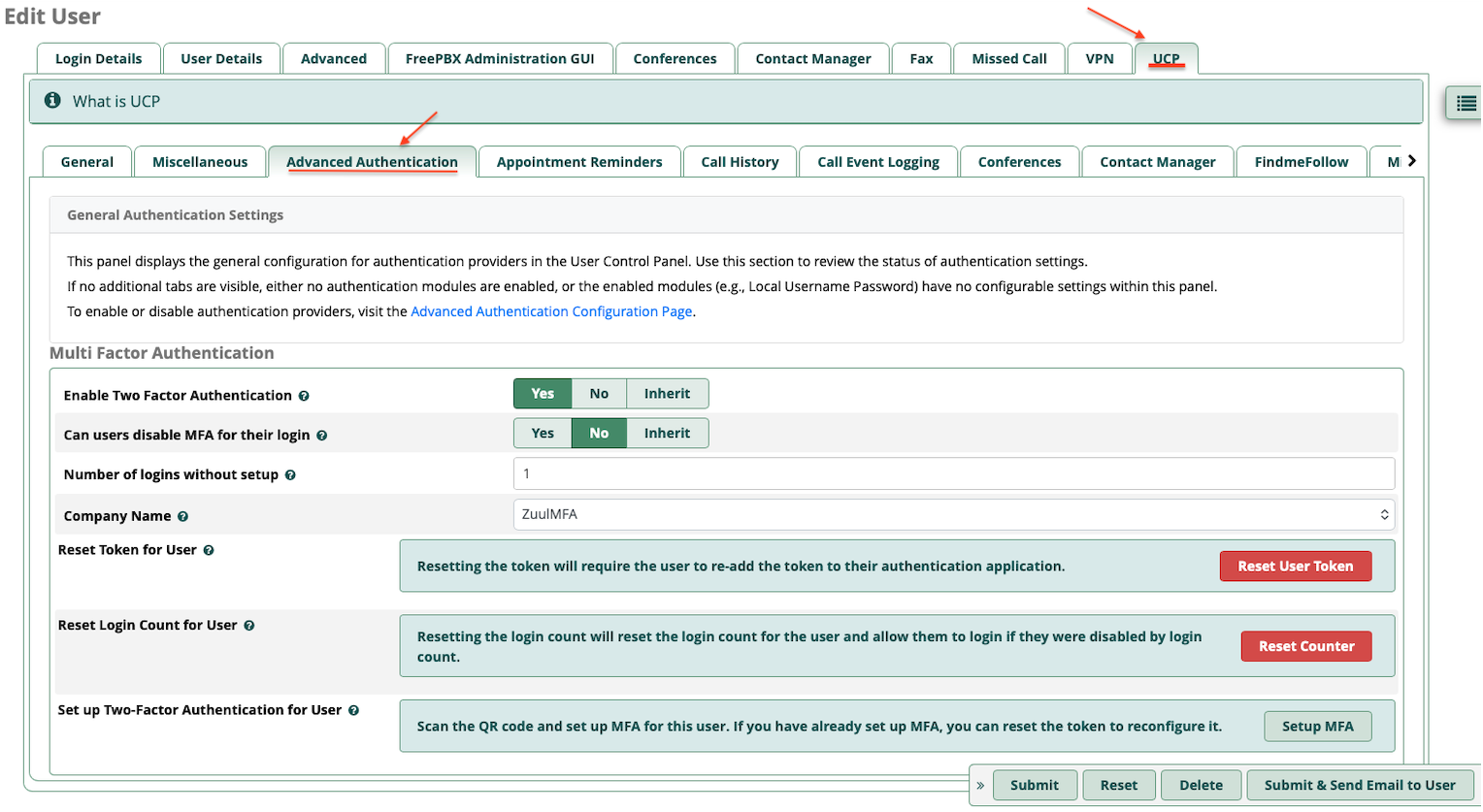
Navigate to Userman and edit a user.
Click on the primary UCP tab and then the Advanced Authentication sub tab,
\
From the menu above you can enable MFA for the user, control whether the user has the ability to disable MFA , specify the number of logins the user can complete without MFA, and assign the company.
Additional options are available that allow for reset of the token or login count along with an option that allows for an admin to complete MFA configuration for the user.
End User configuration of MFA
Once a user has been enabled, the final configuration is performed by the user logging into the User Control Panel.
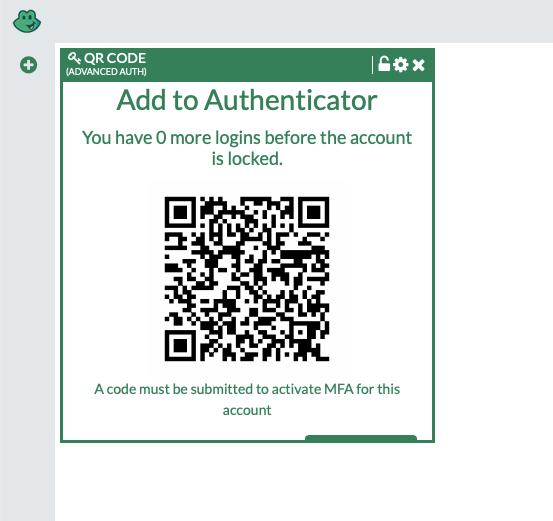
Upon login the user will be presented with a new widget on their panel, QR CODE; if this is not present for some reason add it manually via ADD WIDGET.
At this point the user can open their chosen Totp app (Google or MS Authenticator), click the + sign to add an account, and finally select Scan QR code.
** NOTE - you may need to scroll down within the QR CODE widget in order to access the Validate TOTP button, notice its somewhat hidden in the image above **
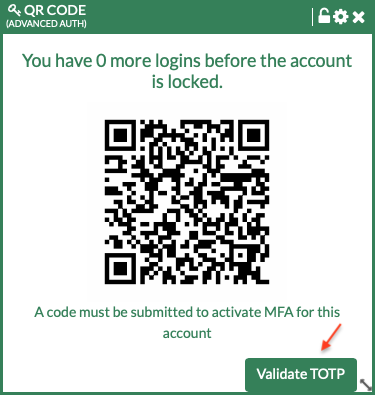
Once validated, Totp configuration for the user is complete.

 Uploading ....